
Knowing how to save a web page as a PDF is one of those small skills that saves real time — whether you’re archiving an article before it disappears behind a paywall, keeping a receipt, or sending someone a page that won’t change or move later.
The good news: every major browser has this built in. No downloads, no extensions, and no account needed for the basic version. This guide covers the exact steps for Chrome, Safari, Firefox, and Edge on both desktop and mobile, plus what to do when a page doesn’t save cleanly — something most tutorials skip entirely.
Why Save a Web Page as a PDF Instead of Just Bookmarking It
A bookmark only saves a link, not the actual content. If the page gets updated, moved, or taken down, your bookmark leads nowhere. A PDF is a permanent snapshot — it captures the page exactly as it looked at that moment, works completely offline, and opens the same way on any device without needing internet access.
This matters for:
- Research and citations — capturing a source exactly as you read it, in case it changes later.
- Receipts and confirmations — order pages, booking confirmations, and account statements that you may need later.
- Reading offline — saving articles to read on a flight or commute with no signal.
- Sharing with someone else — sending a page to a person without a Google account or the same browser, in a format that opens for anyone.
How to Save a Web Page as a PDF on Chrome (Desktop)
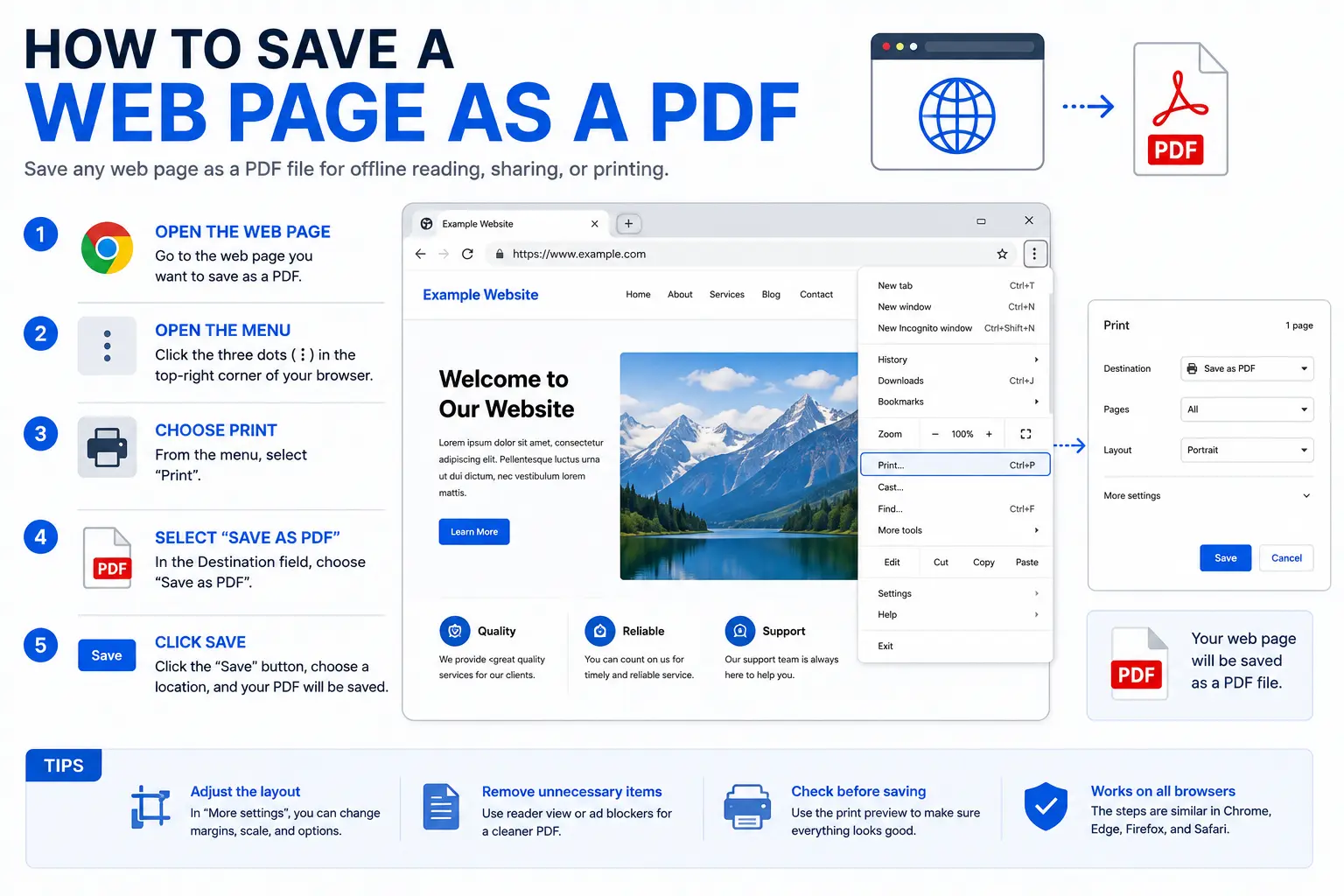
Chrome has this feature built directly into its print function — no extension required for a basic, text-based PDF.
- Open the web page you want to save.
- Press Ctrl+P (Windows/Linux) or Cmd+P (Mac) to open the print menu. You can also click the three-dot menu in the top-right corner and select Print.
- Under Destination, choose Save as PDF.
- Check the preview on the left side of the window.
- Open More settings if you want to adjust paper size, margins, or scale — and turn on Background graphics if the page has colored sections, since this option is off by default and colors will otherwise disappear.
- Click Save, choose a folder, and name the file.
For most articles, blog posts, and simple pages, this produces a clean PDF with selectable, searchable text.
How to Save a Web Page as a PDF on Safari (Mac and iPhone)
On Mac
- Open the page in Safari.
- Press Cmd+P to open the print dialog.
- Click the PDF dropdown in the bottom-left corner of the window.
- Select Save as PDF.
- Choose a save location and click Save.
On iPhone or iPad
There are two common approaches, depending on what you need.
Method 1 — Full page screenshot (captures visuals exactly):
- Open the page in Safari and take a screenshot.
- Tap the screenshot thumbnail, then select the Full Page tab.
- Make any markups if needed, then tap Done.
- Choose Save PDF to Files.
- Pick a location and tap Save.
Method 2 — Print-based PDF (better for long text articles):
- Tap the Share icon in Safari.
- Select Print.
- In the print preview, pinch outward on the preview thumbnail — this converts it into a scrollable PDF view.
- Tap the Share icon again from that PDF view to save it to Files or send it elsewhere.
How to Save a Web Page as a PDF on Firefox
Firefox’s print-to-PDF process is similar to Chrome’s, with a couple of useful extras.
- Go to the page you want to save.
- Press Ctrl+P (or Cmd+P on Mac), or click the menu icon and select Print.
- In the top-left of the print preview, find the Destination dropdown and choose Save to PDF.
- Adjust settings in the right-hand sidebar — orientation (portrait or landscape) and format.
- Firefox includes a Simplify Page option, which strips ads and clutter before saving — useful for long articles.
- Click Save, then choose a file location.
How to Save a Web Page as a PDF on Microsoft Edge
Edge is built on the same underlying engine as Chrome, so the steps are nearly identical.
- Open the page and press Ctrl+P.
- Under the Printer (or Destination) dropdown, select Save as PDF or Microsoft Print to PDF.
- Click Print.
- Choose where to save the file and click Save.
How to Save a Web Page as a PDF on Android
- Open the page in Chrome (or your default browser).
- Tap the three-dot menu, then select Share, then Print.
- From the printer dropdown, select Save as PDF.
- Tap the PDF icon or download button to save the file to your device.
Comparison: Print-to-PDF vs. Other Saving Methods
| Method | Selectable Text | Preserves Exact Visual Layout | Works on Long/Scrolling Pages | Needs Extra Tools |
| Browser print-to-PDF | Yes | Often no (reflows for paper) | Sometimes breaks awkwardly | No |
| Full-page screenshot | No | Yes | Yes | No (built into most phones/browsers) |
| Browser extension (PDF capture) | Usually yes | Usually yes | Usually yes | Yes (extension install) |
| Online URL-to-PDF tool | Varies | Varies | Varies | Yes (third-party site) |
Choose print-to-PDF when you mainly need the text and don’t mind imperfect formatting. Choose a full-page screenshot or extension when the page’s visual design — colors, layout, sticky headers — matters as much as the content itself.
Why Some Web Pages Don’t Save Cleanly (and How to Fix It)
This is the part most guides skip, and it’s exactly where beginners get stuck. Browser print-to-PDF works by reformatting a page for paper, which causes a few predictable problems:
- Missing images — images that load only as you scroll down (“lazy-loaded” images) sometimes don’t appear if they hadn’t loaded yet when you triggered print.
- Content cut in half — text or images get split awkwardly across page breaks, since the page is being divided into paper-sized sections.
- Repeated headers — a sticky navigation bar that stays fixed while you scroll on-screen can end up printed on every single page of the PDF.
- Missing colors and backgrounds — by default, most browsers strip out background colors and images to save ink; this is fixable by enabling the Background graphics option in print settings.
- Interactive elements disappear — dropdown menus, tabs, and expandable sections save in their closed, collapsed state.
Fixes for pages that don’t print cleanly
- Scroll through the entire page first, before opening the print menu, so lazy-loaded images have time to appear.
- Enable Background graphics in the print settings (More settings > Background graphics) to keep colors and background images intact.
- Adjust the scale to 80–90% if content looks too wide or gets cut off at the page edges.
- Use a full-page screenshot instead of print-to-PDF when the visual layout matters more than selectable text — this captures the page as one continuous image with no page breaks.
- Expand collapsed sections manually (open dropdowns, accordions, and tabs) before saving, since interactive elements save in whatever state they’re in at that moment.
Common Mistakes to Avoid
- Printing before the page fully loads. Images, ads, and dynamic content need time to render — save too early and they’ll be missing.
- Forgetting to check Background graphics. This single setting is the most common reason a saved PDF looks washed out compared to the live page.
- Assuming all methods produce the same file. A screenshot-based PDF looks accurate but has no selectable text; a print-based PDF has text but may distort the layout.
- Not previewing before saving. Every browser shows a preview pane — always check it, since fixing page breaks or missing content after the fact means starting over.
- Trying to save an extremely long page in one shot without adjustment. Very long articles or infinite-scroll pages often need the scale or “Simplify Page” options adjusted to avoid awkward breaks.
Best Practices
- Save important pages the moment you find them, especially time-sensitive content like pricing pages, terms of service, or news articles that could be edited or removed later.
- Name files clearly and consistently (e.g., “SiteName-Topic-Date.pdf”) so saved pages stay easy to find later.
- Use “Simplify Page” or reader mode before printing, when your browser supports it, to strip ads and clutter from long articles.
- Keep a dedicated folder for saved web pages, especially if you’re archiving pages for research, receipts, or legal reference.
- Test the PDF after saving by opening it and confirming the content, links, and images all appear as expected before relying on it.
Frequently Asked Questions
How do I save a web page as a PDF without an extension?
Every major browser (Chrome, Safari, Firefox, Edge) has a built-in print-to-PDF feature. Press Ctrl+P (or Cmd+P on Mac), choose “Save as PDF” as the destination, and click Save — no extension or third-party tool required.
Why does my saved PDF look different from the actual web page?
Browser print-to-PDF reformats pages for paper output, which can strip background colors, break sticky headers into repeated sections, and reflow responsive layouts. Enabling “Background graphics” in print settings and using a full-page screenshot method for visually complex pages both help preserve the original look.
Can I save a web page as a PDF on my phone?
Yes. On iPhone, use Safari’s full-page screenshot feature or the Print-then-pinch method. On Android, use Chrome’s Share > Print > Save as PDF option.
How do I save a full scrolling page instead of a paginated one?
Browser print-to-PDF always paginates content into page-sized sections. For a single continuous image without page breaks, use a full-page screenshot method instead, available natively on iPhone and through extensions on desktop browsers.
Does saving a web page as a PDF keep the links clickable?
It depends on the method. Print-to-PDF from a browser typically preserves clickable links and selectable text. Screenshot-based PDFs are essentially images, so links and text are not selectable or clickable.
Is there a way to save a web page as a PDF automatically, without opening the print menu?
Yes, browser extensions built specifically for this purpose can convert a page to PDF with a single click, and some also let you remove ads or unwanted elements before saving. These add convenience but require installing additional software, unlike the built-in print method.
Final Thoughts
Saving a web page as a PDF is a two-minute task once you know where the option lives in your browser — and it’s built into every major one, with no extension required for basic use.
For simple, text-based pages, the standard print-to-PDF method works well. For pages with sticky headers, heavy visual design, or long scrolling layouts, a full-page screenshot or a dedicated PDF capture tool will preserve what you actually see far better than the default print dialog.


