
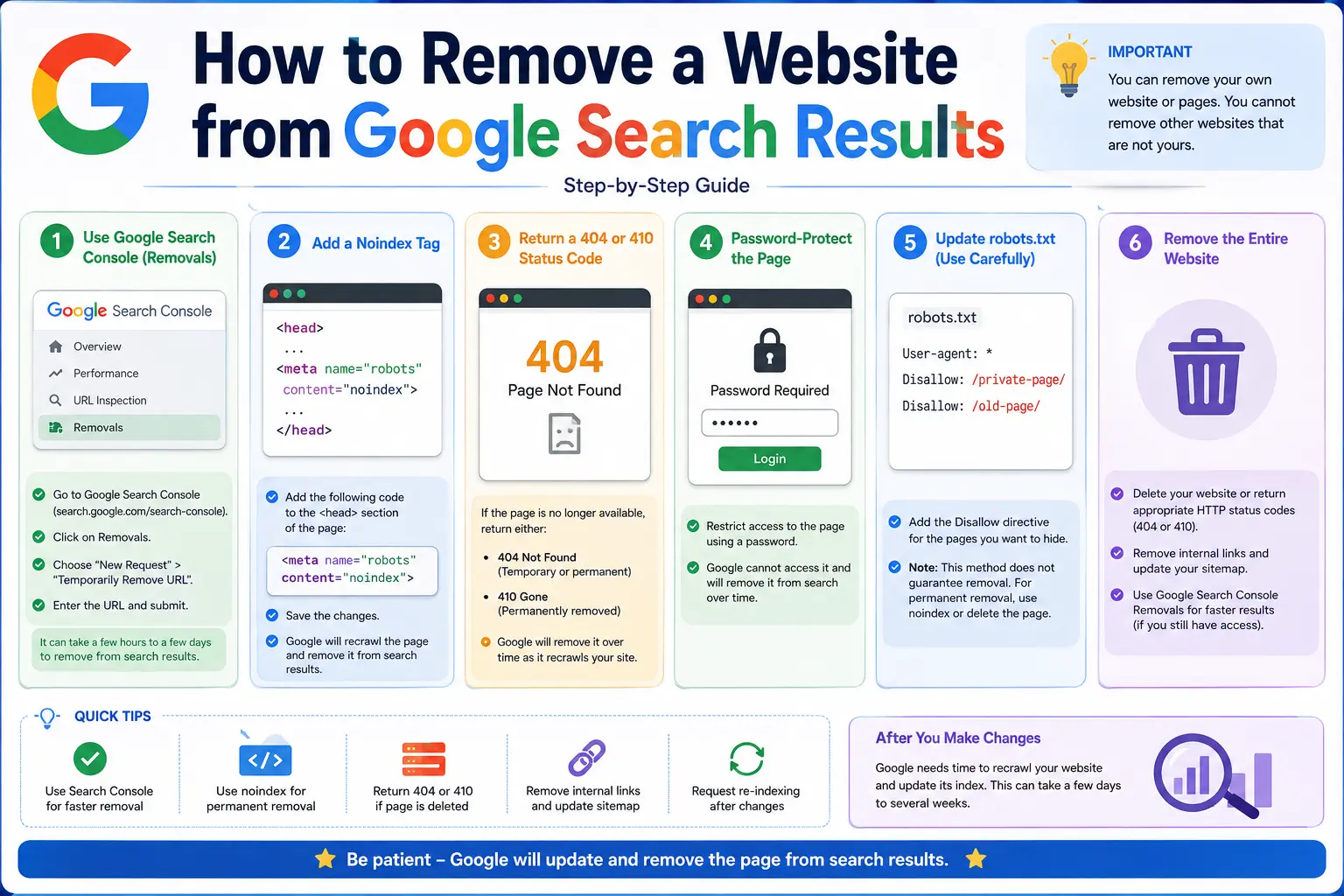
Learning how to remove a website from Google search results depends entirely on one key detail most guides skip: do you own the site, or not? The tools, speed, and success rate are completely different depending on the answer.
This guide covers both situations in full — from the fast, official Search Console method for site owners, to the slower, more limited options available when the website belongs to someone else. It also explains a common misunderstanding that trips people up constantly: removing a page from Google Search is not the same as deleting it from the internet.
Table of Contents
Important: Removing From Google ≠ Deleting the Website
Before anything else, understand this distinction clearly:
- Removing a URL from Google Search hides it from Google’s search results.
- The website itself still exists and remains accessible if someone visits the URL directly, or finds it through a different search engine.
If your goal is to make content disappear entirely from the internet, you need to get the content taken down at its source — not just hidden from one search engine’s results. If your goal is specifically to stop it from showing up when people search on Google, the methods below apply directly.
If You Own the Website: Use Google Search Console
If it’s your own site, Google gives you a direct, official tool for this — no waiting on someone else to approve anything.
Step 1: Verify Ownership in Search Console
You’ll need a verified property in Google Search Console, Google’s free tool for site owners to monitor and manage how their site appears in search. If you haven’t set this up yet, you’ll need to verify ownership (usually via a DNS record, HTML file upload, or your domain registrar) before the removal tool becomes available.
Step 2: Submit a Temporary Removal Request
- Open Google Search Console and select your verified property.
- In the left sidebar, click “Removals” under the Indexing section.
- Click “New Request.”
- Paste the exact URL you want removed — matching the capitalization, trailing slashes, and full path precisely.
- Choose either “Remove this URL only” or the prefix option to remove an entire section of the site.
- Click Submit.
Google typically suppresses the URL from search results within several hours to about 24 hours. This is genuinely one of the fastest ways to react if sensitive or embarrassing content gets published by mistake.
Step 3: Understand What This Tool Actually Does (and Doesn’t Do)
This is the part most people misunderstand: the Removals tool creates a temporary suppression, not a permanent deletion. The page’s entry typically remains in Google’s index behind the scenes, and the suppression generally lasts around six months. If the page is still live and returns a normal, indexable response when Google’s crawler next visits, it can reappear in search results once the suppression period ends.
For a truly permanent removal, you need one of the following in place before the temporary suppression expires:
- A noindex meta tag in the page’s HTML, telling search engines not to index it
- The page returning a 404 (Not Found) or 410 (Gone) status code
- Deleting the page or content entirely from your server
- Restricting the page behind a login or password
Step 4: Add a Noindex Tag for Permanent Removal
To permanently keep a specific page out of Google’s results, add this tag inside the page’s <head> section:
<meta name=”robots” content=”noindex”>
This tells search engines: “You can still crawl this page, but don’t include it in search results.” Combining a noindex tag with the temporary removal request gives you both the fast, short-term suppression and the long-term fix in one move.
Step 5: Remove an Entire Website From Google
If you want to deindex your whole site rather than a single page, you have two main paths:
- Block crawling entirely by adding this to your robots.txt file:
User-agent: *
Disallow: /
- Add a noindex tag sitewide, applied to every page’s template, if you want pages to still be crawled but excluded from search results specifically.
Blocking with robots.txt prevents Google from crawling the site at all, while noindex allows crawling but blocks the page from appearing in results — the right choice depends on whether you also want to stop Google from accessing the content in the first place.
If You Don’t Own the Website
This is where most people get stuck, since you can’t use Search Console for a site you don’t control. You have three realistic paths, depending on the situation.
Option 1: Use Google’s “Remove Outdated Content” Tool
If the content has already been changed or deleted from the live page, but Google’s search results still show the old version, anyone (not just the site owner) can submit it through Google’s public Remove Outdated Content tool. This works specifically when the actual page has already changed — Google checks the current live version against what’s showing in search, and updates it if there’s a mismatch.
This tool does not work if the content is still actively present on the page — it’s designed to sync outdated search snippets with pages that have genuinely already been updated or removed.
Option 2: Contact the Website Owner Directly
For content that’s still live and you want taken down, the most direct path is contacting the site owner and requesting removal or correction. Once they remove or update it, Google’s normal recrawling process (or the Remove Outdated Content tool afterward) reflects the change in search results.
Option 3: File a Legal or Personal Information Removal Request
Google offers a separate process specifically for certain categories of sensitive personal content — such as government ID numbers, financial account details, non-consensual explicit imagery, or doxxing-style personal contact information — that can be requested for removal directly through Google’s dedicated request forms, even without the site owner’s cooperation. This process is intentionally narrow and doesn’t apply to general negative reviews, unflattering articles, or opinions you simply disagree with.
Comparing Your Removal Options
| Situation | Best Method | Speed | Permanence |
| You own the site, urgent issue | Search Console Removals tool | Hours to 24 hours | Temporary (~6 months) unless paired with noindex |
| You own the site, permanent fix | Noindex tag or 404/410 status | Depends on next crawl | Permanent |
| You own the entire site | robots.txt block or sitewide noindex | Depends on next crawl | Permanent |
| Content already changed elsewhere, you don’t own the site | Remove Outdated Content tool | Days | Permanent (syncs with live page) |
| Content still live, you don’t own the site | Contact site owner | Variable | Depends on owner’s action |
| Sensitive personal information, any site | Google’s personal data removal request | Days to weeks | Permanent from Google Search only |
Common Mistakes to Avoid
- Assuming removal from Google deletes the website. The content usually still exists — you’ve only hidden it from Google’s search results, not the internet itself.
- Using only the temporary removal tool and stopping there. Without a noindex tag or a real content change, the page can reappear once the six-month suppression ends.
- Submitting a URL that doesn’t exactly match the indexed version. Small mismatches in capitalization, trailing slashes, or parameters can cause the request to fail silently.
- Trying to use Search Console for a site you don’t own. This tool only works for verified properties — it cannot remove someone else’s website.
- Expecting the Remove Outdated Content tool to work on unchanged pages. This tool only updates search results to match a page that’s already been genuinely modified or deleted.
- Assuming a negative review or article qualifies for legal removal. Google’s personal information removal process is limited to specific sensitive categories, not general reputation management.
Best Practices
- Always pair a temporary Search Console removal with a permanent fix (noindex, deletion, or status code change) so the content doesn’t quietly return later.
- Double-check the exact URL format before submitting any removal request — copy it directly from the search result itself rather than retyping it from memory.
- If you’re dealing with a site you don’t control, try the least aggressive option first (contacting the owner) before escalating to a formal request.
- Keep records of your removal requests and confirmation numbers in case you need to follow up.
Frequently Asked Questions
How long does it take to remove a website from Google search results? Using the Search Console Removals tool on a site you own typically suppresses the URL within a few hours to about 24 hours. For content on sites you don’t own, using the Remove Outdated Content tool or a legal removal request generally takes several days to a few weeks.
Can I permanently delete a website from Google search? Yes, but the Removals tool alone only creates a temporary suppression lasting around six months. For a truly permanent result, you need to also add a noindex tag, delete the content, or return a 404/410 status code before the temporary suppression expires.
How do I remove a website from Google search if I don’t own it? If the content has already changed or been deleted on the live page, use Google’s public Remove Outdated Content tool. If the content is still live, contact the site owner directly, or in narrow cases involving sensitive personal information, file a request through Google’s dedicated personal data removal process.
Does removing a site from Google also remove it from other search engines? No. Google’s removal tools only affect Google’s own search results. You would need to submit separate requests to other search engines, such as Bing, if you want the content removed there as well.
What’s the difference between noindex and robots.txt for removing content? A noindex tag allows Google to crawl the page but excludes it from search results, while a robots.txt block prevents Google from crawling the page at all. If a page is already indexed, noindex is generally the more reliable way to get it removed, since a robots.txt block alone can sometimes leave an already-indexed URL showing in results without a description.
Can Google remove a website just because I don’t like what it says about me? Not through the standard tools. Google’s personal information removal process is limited to specific sensitive categories, like exposed personal contact details or financial information — it isn’t designed for removing general opinions, reviews, or unflattering coverage.
Final Thoughts how-to-remove-a-website-from-google-search-results
How to remove a website from Google search results really comes down to two different playbooks: a fast, direct process if you own the site through Search Console and a noindex tag, or a slower, more limited set of options — the Remove Outdated Content tool, direct contact, or a legal request — if you don’t. Either way, remember that removing something from Google’s results and removing it from the internet are two separate outcomes, and only the second one guarantees people can never find it through any other channel.
If you’re dealing with an urgent situation on your own site right now, start with the Search Console Removals tool immediately, then follow up with a permanent noindex tag before the six-month window closes.


