
CSS is the paint, lighting, and decoration. JavaScript is what makes the lights turn on when you flip a switch.
You can build a complete, working website using only HTML and CSS. JavaScript becomes necessary once you want the page to do something beyond simply displaying information.
Table of Contents
What You Need How to Code a Website From Scratch: A Beginner’s Guide
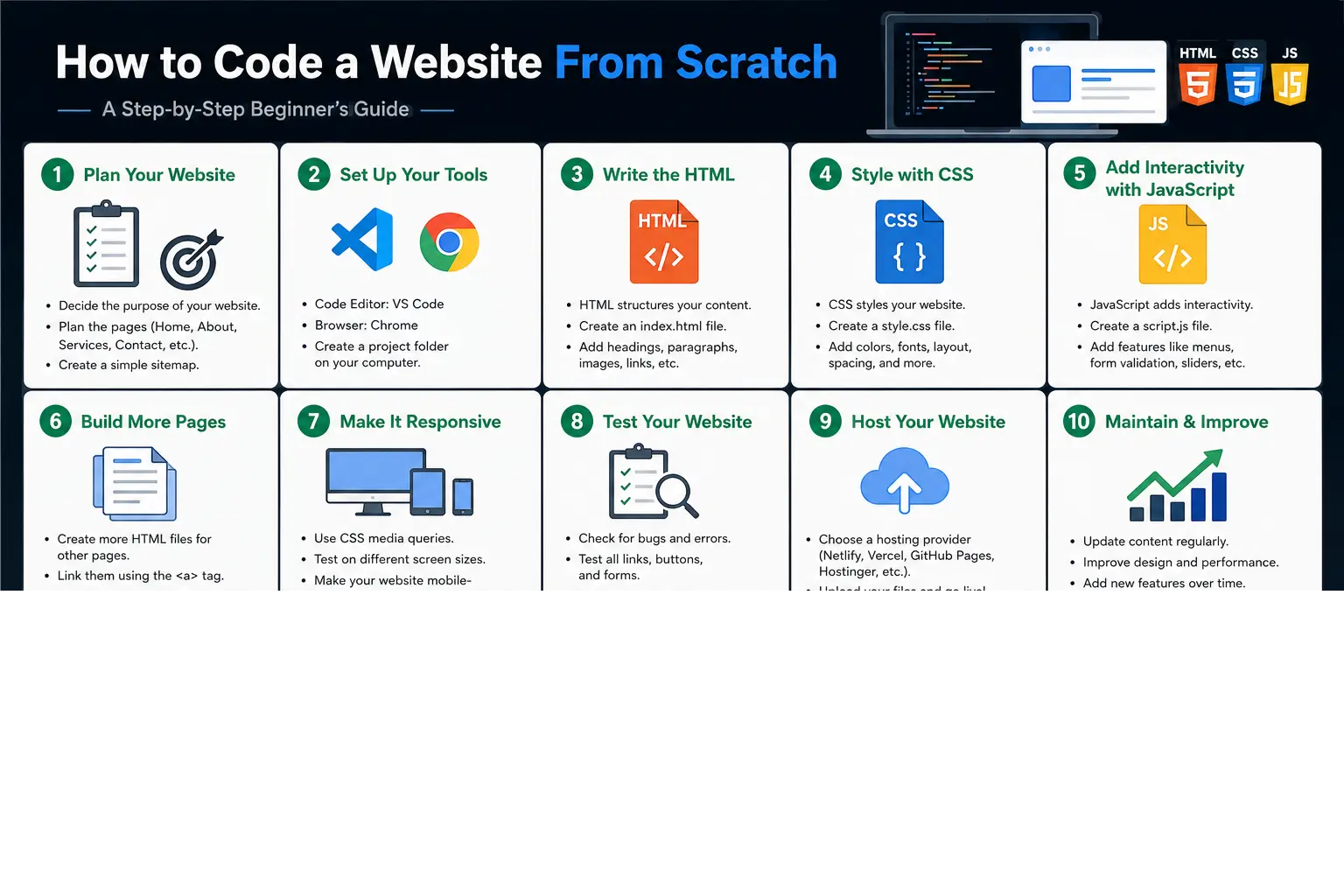
Learning how to code a website looks intimidating from the outside, but the core idea is simple: a website is just text files written in a language your browser understands, sitting on a computer that stays connected to the internet 24/7.
This guide walks through every piece you actually need — the languages, the tools, and the steps — in the order a real beginner should learn them. No prior experience assumed.
What You’re Actually Building
Before touching any code, it helps to understand what a website is made of. Every website, no matter how complex, is built from three layers:
| Layer | Language | What It Controls |
| Structure | HTML | The content itself — headings, paragraphs, images, links |
| Style | CSS | How that content looks — colors, fonts, spacing, layout |
| Behavior | JavaScript | What happens when someone interacts — clicks, form submissions, animations |
Think of it like building a room. HTML is the walls and furniture placement. CSS is the paint, lighting, and decoration. JavaScript is what makes the lights turn on when you flip a switch.
You can build a complete, working website using only HTML and CSS. JavaScript becomes necessary once you want the page to do something beyond simply displaying information.
What You Need Before You Start
Coding a website from scratch doesn’t require expensive software. Here’s the full list:
- A text editor. Visual Studio Code (VS Code) is free and the most widely used editor for web development. It highlights your code, catches typos, and previews changes instantly.
- A web browser. Chrome, Firefox, or Edge — any modern browser works as your testing ground.
- A folder on your computer. This is where your website’s files will live before you publish them.
That’s the entire toolkit. You don’t need to install a server, database, or any paid software to write your first working page.
How to Code a Website Step by Step
Step 1: Write Your First HTML Page
HTML (HyperText Markup Language) is not a programming language — it’s a markup language, meaning it describes the structure of content rather than performing logic or calculations. It uses tags (words wrapped in angle brackets) to label each piece of content.
Create a file named index.html and add this:
<!DOCTYPE html>
<html>
<head>
<title>My First Website</title>
</head>
<body>
<h1>Hello, World!</h1>
<p>This is my first website, coded from scratch.</p>
</body>
</html>
Save the file, then double-click it — it opens directly in your browser. That’s a fully functional website, running with zero installations.
What each part means:
- <!DOCTYPE html> tells the browser this is a modern HTML document.
- <head> holds information about the page (like its title) that isn’t shown directly on screen.
- <body> holds everything visitors actually see.
- <h1> marks a main heading; <p> marks a paragraph.
Step 2: Style It With CSS
CSS (Cascading Style Sheets) controls appearance. Create a second file called style.css, then link it inside your HTML’s <head>:
<link rel=”stylesheet” href=”style.css”>
In style.css, add:
body {
font-family: Arial, sans-serif;
background-color: #f4f4f4;
text-align: center;
}
h1 {
color: #2c3e50;
}
Refresh the browser. The page now has a background color, a chosen font, and a styled heading — with no changes to the HTML file itself. This separation (structure in one file, style in another) is standard practice, since it lets you redesign a page without rewriting its content.
Step 3: Add Interactivity With JavaScript
JavaScript adds behavior — actions that happen in response to something, like a button click. Create a file named script.js, link it near the bottom of your <body>:
<script src=”script.js”></script>
Add this to script.js:
document.querySelector(“h1”).addEventListener(“click”, function() {
alert(“You clicked the heading!”);
});
Now clicking the heading triggers a popup message. This is the same fundamental pattern behind far more complex features — a listener waits for an event (a click, a keystroke, a page load), and a function runs in response.
Step 4: Structure a Multi-Section Page
A real website usually needs more than one section. HTML provides semantic tags — elements named for their purpose, which also helps search engines and screen readers understand your page:
<header>
<h1>My Business Name</h1>
<nav>
<a href=”#about”>About</a>
<a href=”#contact”>Contact</a>
</nav>
</header>
<section id=”about”>
<h2>About Us</h2>
<p>We build simple, useful websites.</p>
</section>
<section id=”contact”>
<h2>Contact</h2>
<p>Email us at hello@example.com</p>
</section>
<footer>
<p>© 2026 My Business Name</p>
</footer>
<header>, <nav>, <section>, and <footer> each describe what role that part of the page plays — this is the backbone of nearly every real website you visit.
Step 5: Make It Responsive
A responsive website adjusts its layout depending on screen size, so it looks correct on both a phone and a desktop monitor. The two essentials:
Add this line inside <head>:
<meta name=”viewport” content=”width=device-width, initial-scale=1.0″>
- Without this tag, mobile browsers shrink your entire page to fit a desktop-sized layout, making text unreadably small.
Use CSS media queries to change styles at different widths:
@media (max-width: 600px) {
h1 {
font-size: 24px;
}
}
- This rule only applies when the screen is 600 pixels wide or narrower — typically a phone.
Step 6: Put Your Website Online
A website only exists on your computer until you publish it — copying your files onto a server that’s always connected to the internet. Two realistic paths for beginners:
- Free static hosting (GitHub Pages, Netlify, or Cloudflare Pages) — ideal for a plain HTML/CSS/JavaScript site with no server-side processing. You upload your files, and the platform gives you a live URL, often for free.
- Paid web hosting — needed once your site requires a database, user accounts, or server-side code (like PHP or Node.js). This is a separate service from where you code the site.
For a first project, free static hosting is the right choice. It gets your work live in minutes without needing to understand server configuration.
Coding a Website vs. Using a Website Builder
Many beginners land on this guide after trying a drag-and-drop builder like Wix or Squarespace and hitting its limits. Here’s the honest tradeoff:
| Approach | Learning Curve | Control | Cost |
| Website builder (Wix, Squarespace) | Very low | Limited to the builder’s templates and features | Ongoing subscription |
| Coding from scratch (HTML/CSS/JS) | Moderate | Full control over structure, design, and behavior | Free to build; hosting can also be free |
| Framework (React, Vue) | Higher | Full control, better suited to large or interactive apps | Free to build; hosting varies |
Coding a website from scratch is the right move if you want to actually understand how the web works, need a design no template can replicate, or plan to keep learning toward a development career. A builder is faster for a simple one-off site with no interest in the code underneath it.
Common Mistakes Beginners Make
- Skipping the viewport meta tag, leaving the site broken on mobile devices — which now make up the majority of web traffic.
- Writing all styles inline (directly inside HTML tags) instead of in a separate CSS file, which becomes unmanageable as a site grows.
- Not testing in more than one browser. A page that looks fine in Chrome can render differently in Safari or Firefox.
- Confusing HTML with a programming language. HTML describes structure; it has no logic, loops, or calculations — that’s JavaScript’s role.
- Publishing without checking broken links or missing images, since a typo in a file path is the most common reason a page fails to load correctly online.
Best Practices When You Code Your Own Website
- Keep HTML, CSS, and JavaScript in separate files, even for small projects — it keeps each layer easy to find and edit.
- Name files and folders in lowercase with no spaces (about-us.html, not About Us.html) to avoid case-sensitivity issues once your site is live on a server.
- Test your site at different screen widths as you build, not just at the very end.
- Use your browser’s Developer Tools (right-click → Inspect) to see exactly how your HTML and CSS are being rendered, and to catch errors in real time.
- Comment your code (<!– like this in HTML –> or // like this in JavaScript) so you can understand your own logic when you return to it later.
Frequently Asked Questions
How to code a website for free? You can code a website entirely for free using a text editor like VS Code, a browser for testing, and free static hosting like GitHub Pages or Netlify to publish it — no paid software or hosting is required for a standard HTML/CSS/JavaScript site.
How do I code a website from scratch with no experience? Start with HTML to learn structure, add CSS for styling, then move to JavaScript for interactivity. Building a single simple page first, then expanding it section by section, is far more effective than trying to learn all three languages at once.
Do I need to know how to code to build a website? No — website builders exist specifically for people who don’t want to write code. But knowing how to code gives you full control over design and functionality that templates can’t offer.
What’s the difference between coding a website and web development as a career? Coding a simple website covers HTML, CSS, and basic JavaScript. Professional web development typically adds frameworks (like React), back-end languages (like Python or Node.js), and databases — skills built on top of the same fundamentals covered here.
Can I code a website using just a phone or tablet? It’s possible with mobile code editor apps, but a laptop or desktop is strongly recommended for anything beyond a single test page, since testing responsive layouts and using developer tools is far easier on a full-sized screen.
How long does it take to learn how to code a website? A basic static page with HTML and CSS can be learned in a few days of focused practice. Comfortable use of JavaScript for interactivity typically takes a few weeks of consistent practice beyond that.
Final Thoughts
Coding a website from scratch comes down to three layers working together: HTML for structure, CSS for style, and JavaScript for behavior. Start with a single page, get it looking right, add one feature at a time, and publish early — seeing your own site live is the fastest way to stay motivated while you keep learning.


