
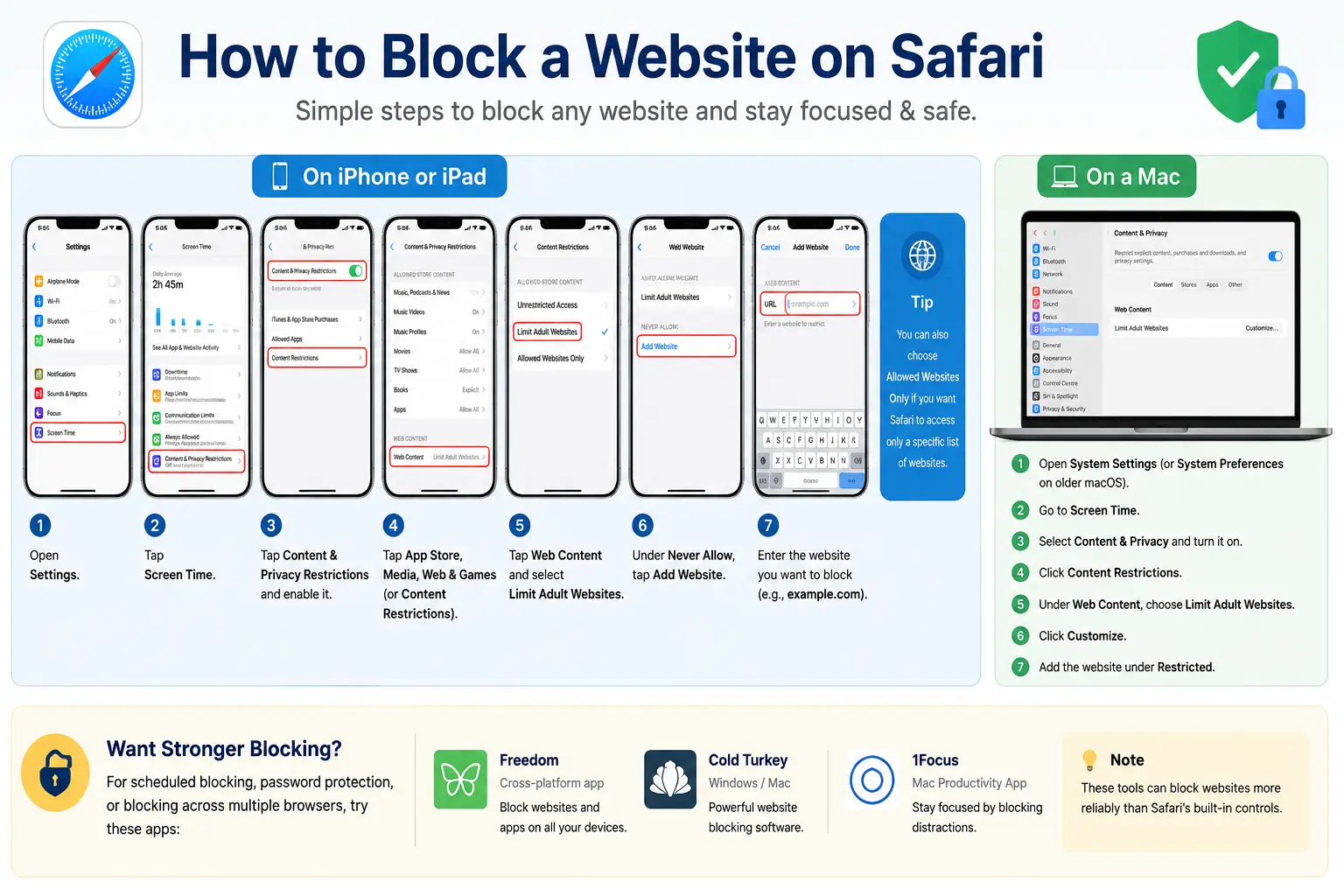
If you want to know how to block a website on Safari, the short answer is that you don’t do it inside Safari itself. Apple removed Safari’s old built-in site-blocking settings years ago. Today, blocking a website on Safari is handled through a system feature called Screen Time, which works the same way across iPhone, iPad, and Mac.
This guide walks you through every method that actually works in 2026, explains why some attempts to block a site fail, and shows you how to fix the common problems people run into.
Table of Contents
Why You’d Want to Block a Website on Safari
There are two common reasons people search for this:
- Parents want to stop their kids from reaching inappropriate or unsafe content.
- Adults want to block distracting sites (social media, news, shopping) to focus on work or study.
Both use cases rely on the same tool: Screen Time. The difference is only in how strict you make the settings and whether you lock them with a passcode only you know.
What “Blocking a Website” on Safari Actually Means
When you block a website through Screen Time, you’re not editing a Safari setting. You’re creating a device-wide rule. That rule applies to:
- Safari itself
- In-app browsers (links opened inside apps like Instagram, TikTok, or Messages)
- Other browsers installed on the same device, such as Chrome or Firefox, since they rely on Apple’s underlying WebKit engine on iPhone and iPad
This is why blocking a site “in Safari” also stops it from loading almost everywhere else on that device — which is usually exactly what people want.
Before You Start: What You Need
- An iPhone, iPad, or Mac running a reasonably recent version of iOS, iPadOS, or macOS
- A passcode you can set on Screen Time (this stops anyone else from undoing your changes)
- The exact web address of the site you want to block, for example example.com
Tip: Add both the plain domain and the www. version when you block a site (example.com and www.example.com). Some websites load under either version, and skipping one can leave a gap.
Method 1: Block a Website on Safari on iPhone or iPad
This is the most common way people block a website on Safari, since most browsing happens on mobile devices.
- Open the Settings app.
- Tap Screen Time.
- If Screen Time isn’t on yet, tap Turn On Screen Time, then Continue.
- Tap Content & Privacy Restrictions, and turn the toggle on.
- Tap Content Restrictions.
- Tap Web Content.
- Choose one of two modes:
- Limit Adult Websites – Apple’s built-in filter automatically blocks known adult content. You can then tap Add Website under “Never Allow” to manually block specific extra sites.
- Allowed Websites Only – A whitelist mode. Every site is blocked by default except the ones you manually add. This is the strictest option, best for young children.
- Go back to Settings > Screen Time and set (or confirm) a Screen Time passcode so nobody else can change these settings.
Once saved, trying to open the blocked site in Safari will show a “This website is restricted” message instead of the page.
How to Block a Website in Safari Using “Allowed Websites Only”
If you’d rather allow only a short list of trusted sites instead of blocking sites one by one, use Allowed Websites Only in the Web Content menu. Apple pre-loads a handful of kid-safe sites, and you can:
- Swipe left on any pre-loaded site to remove it
- Tap Add Website to add sites you personally approve
This flips the logic from “block everything I list” to “allow only what I list,” which is far more reliable for young kids who might discover new sites you haven’t blocked yet.
Method 2: Block a Website on Safari on Mac
The steps are similar on macOS, just under a different menu name.
- Click the Apple menu in the top-left corner.
- Go to System Settings.
- Select Screen Time from the sidebar.
- Click Content & Privacy, and turn it on.
- Click App Store, Media, Web & Games Restrictions (this replaced the older “Content Restrictions” naming on recent macOS versions).
- Under Web Content, choose Limit Adult Websites or Allowed Websites Only, the same as on iPhone.
- Add the website(s) you want to block under Never Allow (or add your approved sites if using Allowed Websites Only).
- Scroll down in Screen Time settings and enable Use Screen Time Passcode to lock the settings.
Restart Safari on the Mac after saving, so the new restriction takes effect immediately.
Blocking Websites Remotely on a Child’s Device (Family Sharing)
If the device belongs to your child and is part of Family Sharing, you don’t need physical access to their iPhone or iPad every time you want to add a blocked site.
- On your own device, open Settings > Screen Time.
- Tap your child’s name under Family.
- Tap Content & Privacy Restrictions, then Content Restrictions > Web Content.
- Add or remove blocked sites the same way as above.
Changes sync to their device the next time it connects to the internet. This is the most practical option for parents managing several devices at once.
Other Ways to Block Websites (Beyond Screen Time)
Screen Time is the right starting point for most people, but it isn’t the only layer of protection available. These options add information gain beyond a basic Screen Time walkthrough:
| Method | Where it works | Best for | Limitation |
| Screen Time (Web Content) | Per device (iPhone, iPad, Mac) | Individuals and families with a few Apple devices | Must be set on each device unless using Family Sharing |
| Router-level blocking | Every device on your home Wi-Fi | Blocking a site for the whole household at once | Doesn’t cover mobile data; requires router admin access |
| DNS filtering (e.g., a family-safe DNS provider) | Any device using that DNS | Blocking categories of sites (gambling, adult content) network-wide | Tech-savvy users can sometimes switch DNS manually |
| Third-party parental control apps | Cross-platform (iOS, Android, Mac, Windows) | Families with mixed device types | Usually requires a paid subscription |
For most households, Screen Time alone is enough. Router or DNS-level blocking is worth adding only if you need the restriction to apply across multiple devices and networks without configuring each one individually.
Common Mistakes When Blocking a Website on Safari
- Forgetting the passcode. Without a Screen Time passcode, anyone with access to the device can simply turn the restriction off.
- Only adding one version of the URL. Add both example.com and www.example.com.
- Assuming it blocks mobile data separately. Web Content restrictions apply regardless of Wi-Fi or cellular, so this isn’t usually an issue — but Downtime and App Limits behave differently and can create confusing overlaps.
- Not checking Family Sharing settings. If a device is managed by Family Sharing, restrictions set locally on the device can be overridden by the organizer’s settings, or vice versa, causing confusion about which list is “the real one.”
- Expecting one setting to cover every browser on every device. Screen Time restrictions are tied to the specific device, not to your Apple ID account or a specific browser app.
Best Practices for Blocking Websites on Safari
- Set the Screen Time passcode to something the device owner won’t guess.
- Use Allowed Websites Only for young children instead of trying to block every bad site individually — it’s far less maintenance.
- Review the blocked/allowed list every few months, since new sites and app-based browsers appear constantly.
- Combine Screen Time with a conversation, especially with older kids and teens. Restrictions reduce accidental exposure, but they aren’t a substitute for guidance on safe internet use.
- If you manage several family devices, set restrictions through Family Sharing rather than repeating the same steps on each device.
Frequently Asked Questions
Can you block a website on Safari without Screen Time? Not directly on iPhone or iPad — Screen Time is Apple’s built-in mechanism for this. On a Mac, you could also use router or DNS-level blocking as an alternative that doesn’t rely on Screen Time at all.
How do I block a website on Safari for someone else’s device? If their device is part of your Family Sharing group, you can manage their Web Content restrictions remotely from your own Settings > Screen Time menu, under their name in the Family section.
Does blocking a site in Safari also block it in Chrome? On iPhone and iPad, yes in most cases — Apple requires all browsers to use its WebKit engine, so Screen Time’s Web Content restrictions typically apply across browsers on the same device. On a Mac, this is less consistent, since desktop browsers use their own engines.
What’s the difference between “Limit Adult Websites” and “Allowed Websites Only”? “Limit Adult Websites” blocks known adult content automatically and lets you add extra sites to a “Never Allow” list, while everything else stays accessible. “Allowed Websites Only” blocks everything except the specific sites you approve — a much stricter, whitelist-based approach.
Why isn’t my blocked website actually blocking on Safari? Usually because the Screen Time passcode wasn’t set (letting someone turn restrictions off), only one version of the URL was added, or the device is managed through Family Sharing with a different list than the one you edited locally.
How do I unblock a website I previously blocked? Go back to Settings > Screen Time > Content & Privacy Restrictions > Content Restrictions > Web Content, find the site under “Never Allow” (or remove it from “Allowed Websites Only”), and delete it from the list.
Final Thoughts How to Block a Website on Safari
Blocking a website on Safari comes down to one place on every Apple device: Screen Time’s Web Content settings. Whether you’re protecting a child from harmful content or blocking your own distractions, the steps are nearly identical on iPhone, iPad, and Mac. Set a passcode, choose the right mode for your situation, and review the list occasionally — that’s the whole system.


