
Typing the same web address over and over, or trying to remember which search brought you to a useful page last week, wastes more time than it should. Bookmarking solves this in a few seconds, and every browser and phone has this built in already — no extra app required.
This guide covers how to bookmark a website on every major desktop browser, plus the exact steps for iPhone and Android, including the difference between a bookmark and adding a site to your home screen, which trips up a lot of people searching for this.
Table of Contents
What a Bookmark Actually Is
A bookmark is a saved shortcut to a specific web page, stored inside your browser so you can return to it instantly without searching or retyping the address. It’s essentially a labeled pointer — the browser remembers the exact URL, and clicking the bookmark takes you straight there.
Bookmarks are different from:
- Browsing history — an automatic, unorganized log of every page you’ve visited, not something you chose to save.
- Home screen shortcuts (on mobile) — an icon placed directly on your phone’s home screen, which can behave slightly differently than a standard bookmark, covered later in this guide.
How to Bookmark a Website on Chrome (Desktop)
Chrome uses the same basic method across Windows and Mac.
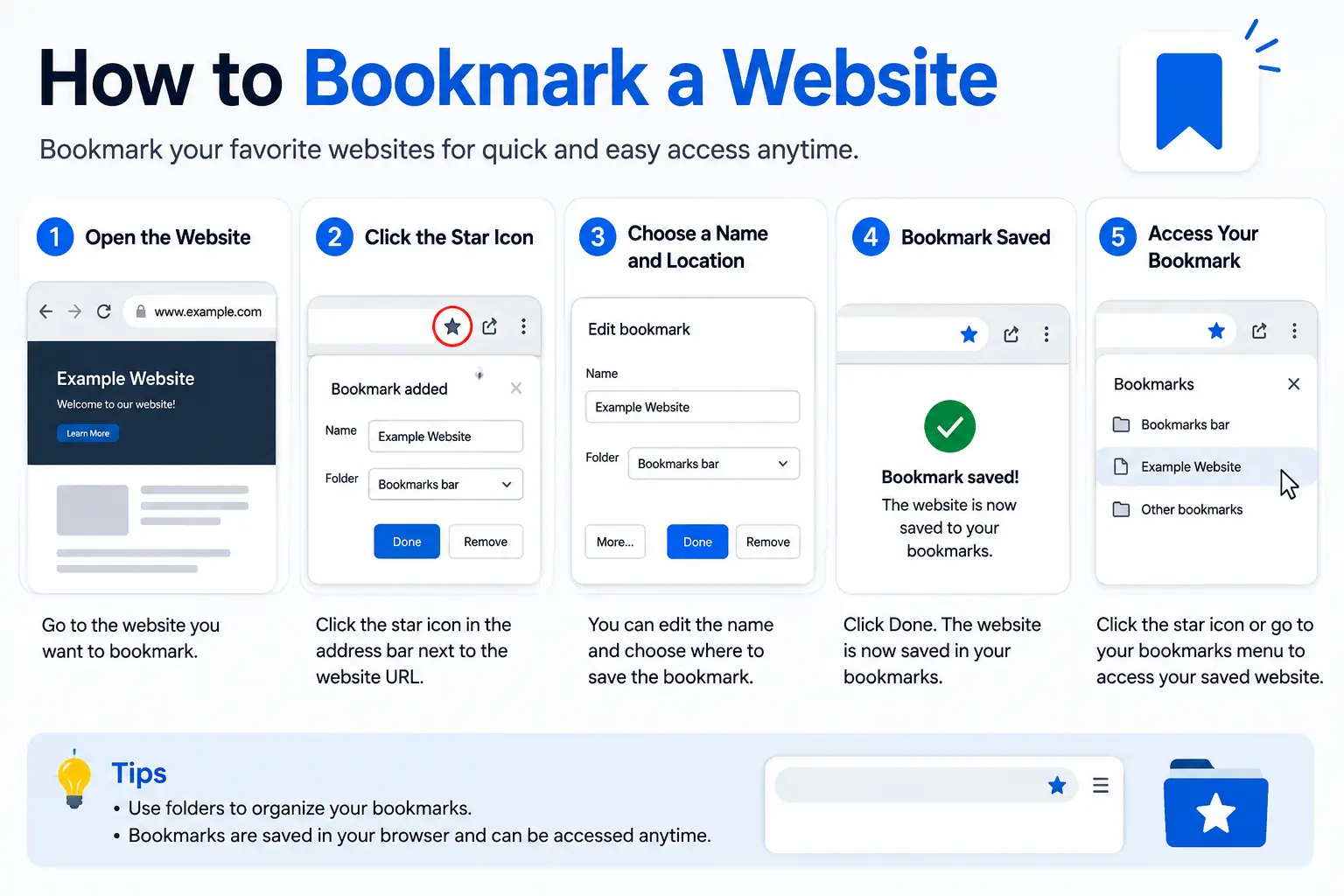
- Open the website you want to save.
- Click the star icon on the right side of the address bar. On some versions, this appears only when you hover near the address bar.
- A small window pops up — confirm or edit the name.
- Choose a folder to save it in, or leave it in the default location.
- Click Done.
Keyboard shortcut: press Ctrl + D on Windows or Cmd + D on Mac to bookmark the current page instantly, without clicking anything.
How to Bookmark a Website on Safari (Mac)
- Open the website in Safari.
- Click the Share icon in the toolbar (a square with an arrow pointing up).
- Select Add Bookmark.
- Choose a folder under “Add this page to,” rename it if needed, and optionally add a short description.
- Click Add.
You can also hover over the address bar and use the small “+” icon that appears at the left edge, which adds the bookmark in one click without opening the full menu.
How to Bookmark a Website on Microsoft Edge
- Open the website in Edge.
- Click the star icon on the right side of the address bar.
- Confirm the name and choose a folder.
- Click Done.
Like Chrome, Edge also supports Ctrl + D as a keyboard shortcut for instantly bookmarking the page you’re on.
How to Bookmark a Website on Firefox
- Open the website in Firefox.
- Click the star icon at the right edge of the address bar.
- The star turns blue, and a small panel lets you choose a folder or add tags.
- Close the panel to save.
Firefox also supports Ctrl + D (Windows) or Cmd + D (Mac) as a shortcut.
How to Bookmark a Website on iPhone
Bookmarking on an iPhone uses Safari by default, and the steps below reflect the current iOS layout.
- Open the Safari app and go to the website you want to save.
- Tap the icon at the bottom (or top, depending on your tab layout) that looks like three dots, or the Share icon directly if your layout shows it.
- Tap Share if you tapped the three-dot menu first.
- Scroll through the share sheet and tap Add Bookmark.
- Choose a location if prompted, then tap Save.
To find your saved bookmarks later, tap the Bookmarks icon (it looks like an open book) at the bottom of the Safari screen.
How to Add a Website to Your iPhone Home Screen
This is a related but different action from bookmarking, and it’s exactly what many people searching “how to bookmark a website on iPhone” are actually looking for — a tappable icon on the home screen itself, not just a saved link inside Safari.
- Open Safari and go to the website.
- Tap the three dots next to the address bar, then tap Share in the menu.
- Scroll down and tap Add to Home Screen.
- If the site supports it, you’ll see an Open as Web App toggle. Leave it on for an app-like window with no browser bar, or turn it off if you’d rather it open as a normal Safari bookmark-style tab.
- Edit the name if you want, then tap Add.
The icon appears directly on your home screen, just like a regular app, and one tap opens the site without needing to open Safari first and search for it.
How to Bookmark a Website on Android
- Open the website in Chrome (the default browser on most Android devices).
- Tap the three-dot menu in the top-right corner.
- Tap the star icon, or select Add to bookmarks or Star, depending on your Chrome version.
- Optionally rename it and choose a folder.
- Tap Save.
To add a home screen shortcut instead (similar to the iPhone method above):
- Open the website in Chrome.
- Tap the three-dot menu.
- Tap Add to Home screen.
- Confirm the name, then tap Add.
Bookmark vs. Home Screen Shortcut: What’s the Difference
This distinction confuses a lot of people, especially on mobile, so here’s a direct comparison:
| Feature | Bookmark | Home Screen Shortcut |
| Where it lives | Inside the browser’s bookmarks list | Directly on your phone’s home screen |
| Requires opening the browser first | Yes | No |
| Looks like an app icon | No | Yes |
| Best for | Pages you check occasionally | Sites you use daily, like email or a favorite app-like site |
If you’re bookmarking something you’ll check now and then, a standard bookmark saved inside the browser works fine. If it’s a site you open constantly, a home screen shortcut saves more time since it skips opening the browser entirely.
How to Organize Bookmarks So You Can Actually Find Them Again
Saving a bookmark is easy — finding it six months later is where most people struggle. A few habits prevent bookmark clutter:
- Use folders by topic, not by date or how urgently you saved something.
- Rename vague page titles. Many pages save with unhelpful default titles like “Home” — rename them to something you’ll recognize instantly.
- Use your browser’s bookmark manager periodically to delete dead links and duplicates. In Chrome, this is available under the three-dot menu, then Bookmarks and lists, then Bookmark Manager.
- Sync across devices by signing into the same browser account (Google account for Chrome, Apple ID for Safari, Microsoft account for Edge) so bookmarks appear on your phone and computer automatically.
Common Mistakes When Bookmarking Websites
- Bookmarking the wrong page. If you’re several clicks deep into a site, double-check the bookmark saves the exact page you want, not the homepage you started from.
- Never organizing bookmarks into folders. A flat, unsorted list of hundreds of bookmarks becomes nearly unusable within a few months.
- Confusing “Add Bookmark” with “Add to Home Screen” on iPhone. These are separate features that behave differently, as shown in the comparison table above.
- Assuming bookmarks sync automatically without being signed in. Syncing across devices requires being logged into the same browser account on each one.
- Losing bookmarks after a browser reset. Bookmarks tied only to local storage, without an account sync enabled, can be lost if the browser is reinstalled or reset.
Frequently Asked Questions
How do I bookmark a website on iPhone without adding it to my home screen? Open the site in Safari, tap the Share icon, then tap Add Bookmark instead of Add to Home Screen. This saves it inside Safari’s bookmarks list rather than placing an icon on your home screen.
What’s the fastest way to bookmark a website on a computer? Press Ctrl + D on Windows or Cmd + D on Mac while the page is open. This works in Chrome, Edge, and Firefox without needing to click any icons.
Can I bookmark a website without opening a browser app? Not directly — bookmarking requires the page to be open in a browser first, since the bookmark saves that exact page’s address. However, you can add a home screen shortcut, which then opens the site with a single tap afterward.
Why did my bookmarks disappear after updating my browser or phone? This usually happens if bookmarks weren’t synced to an account (Google, Apple ID, or Microsoft account) before the update or reset. Enabling sync going forward prevents this from happening again.
How do I see all my bookmarks in one place? In most browsers, this is accessible through the main menu, usually labeled “Bookmarks” or “Bookmark Manager.” On iPhone, tap the open-book icon at the bottom of Safari.
Is there a limit to how many websites I can bookmark? Most browsers don’t enforce a strict limit, though performance and usability drop significantly once bookmark lists grow into the thousands without folder organization.
Final Thoughts
Bookmarking a website takes only a few seconds once you know where the option lives in your specific browser or phone, and the steps stay largely consistent across Chrome, Edge, Firefox, and Safari. On iPhone specifically, remember the key distinction: Add Bookmark saves the link inside Safari, while Add to Home Screen creates a tappable icon you can open instantly, without ever opening the browser first.


