
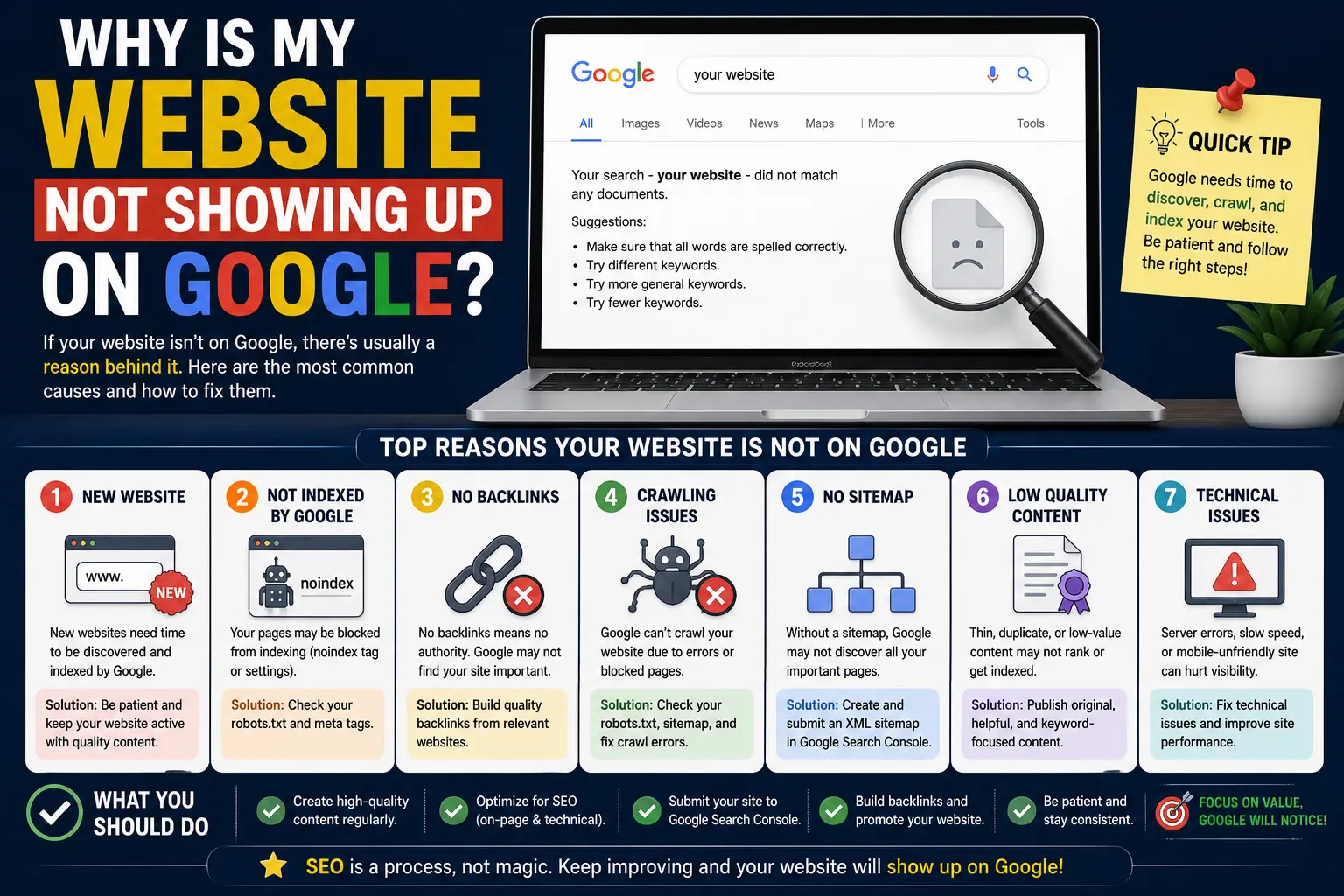
If you searched your own website’s name and it didn’t appear anywhere, you’ve probably typed some version of “why is my website not showing up on Google” into the search bar out of pure frustration. You’re not alone. This happens to brand-new sites, redesigned sites, and even sites that were ranking fine last month.
The good news: in almost every case, the cause is one of a small, predictable list of problems — and each one has a clear fix. This guide walks through exactly how to check whether Google even knows your site exists, the most common reasons it doesn’t show up, and the step-by-step process to get it indexed and ranking.
Table of Contents
Quick Answer: Check This First
Before diving into causes, run this 30-second test.
- Open Google and search: site:yourdomain.com (replace with your real domain, no spaces).
- If pages appear, your site is indexed — the problem is ranking, not visibility. Skip ahead to the “indexed but not ranking” section below.
- If Google says “no results found,” your site (or the specific page) has not been indexed yet. Keep reading.
“Indexed” simply means Google has crawled your page and stored it in its database of searchable pages, called the Google index. A page has to be indexed before it can rank for anything.
13 Reasons Your Website Isn’t Showing Up on Google
1. Your Website Is Brand New
Google doesn’t discover new websites instantly. A new domain typically needs anywhere from a few days to a few weeks before Googlebot (Google’s crawling program) even finds it for the first time.
What to do: Submit your homepage URL directly through Google Search Console (free tool from Google, covered below) instead of waiting for Google to stumble onto it naturally.
2. You Haven’t Set Up Google Search Console
Google Search Console is a free dashboard from Google that shows you exactly how Googlebot sees your site — what’s indexed, what’s blocked, and what errors exist. Without it, you’re diagnosing blind.
What to do:
- Go to search.google.com/search-console and add your property.
- Verify ownership (usually via a DNS record or an HTML file upload).
- Use the URL Inspection Tool to check any specific page and click Request Indexing if it hasn’t been crawled.
3. Your robots.txt File Is Blocking Google
Every site can have a small file called robots.txt that tells search engine crawlers which parts of the site they’re allowed to visit. Many site builders and developers accidentally leave a line in this file that blocks everything.
How to check: Visit yourdomain.com/robots.txt in your browser. If you see this line:
User-agent: *
Disallow: /
…you’ve found the problem. That single line tells every crawler, including Googlebot, to stay away from your entire site.
Fix: Change it to:
User-agent: *
Disallow:
Or remove the disallow line entirely if you want everything crawlable.
4. A “Noindex” Tag Is Present
A noindex meta tag is a direct instruction to Google: “do not add this page to your index.” Developers often add this during a staging/testing phase and forget to remove it before launch — this is one of the single most common reasons a fully working, well-designed site never shows up.
How to check: View your page’s source code (right-click → View Page Source) and search for:
<meta name=”robots” content=”noindex”>
If it’s there and shouldn’t be, remove it, then request re-indexing in Search Console.
Many WordPress sites also have a setting under Settings → Reading called “Discourage search engines from indexing this site.” If this box is checked, unchecking it is often the entire fix.
5. No XML Sitemap Submitted
An XML sitemap is a file that lists every important page on your site so Google can find them more efficiently, rather than relying purely on links.
What to do:
- Generate a sitemap (most CMS platforms, like WordPress with Yoast or RankMath, do this automatically at yourdomain.com/sitemap.xml).
- Submit that URL under Sitemaps in Google Search Console.
6. Thin or Low-Value Content
Google’s core mission is to show searchers the most useful result. If a page has very little unique text, duplicates content from elsewhere, or was clearly written only for search engines rather than people, Google may crawl it but choose not to index it — this shows up in Search Console as “Crawled – currently not indexed.”
What to do: Make sure each important page has substantial, original, genuinely useful content — enough to fully answer what a visitor is looking for.
7. Duplicate Content or Canonical Issues
If the same content is accessible at multiple URLs (for example, http:// and https://, or www and non-www versions, or with and without a trailing slash), Google may get confused about which version to index — or index none of them properly.
Fix: Set a canonical tag on each page pointing to the one preferred URL:
<link rel=”canonical” href=”https://www.yourdomain.com/page/”>
Also make sure your site redirects all duplicate versions to one single preferred version.
8. Server Errors or Crawl Errors
If Googlebot tries to visit your site and gets a server error (a 5xx error) or the page returns a 404 (page not found), it can’t index the page — and repeated errors can hurt trust in the entire domain.
Where to check: Search Console’s Page Indexing report shows every URL Google tried to crawl and why it failed, categorized by error type.
9. Your Site Is Too Slow or Fails Core Web Vitals
Google does consider page experience signals — how fast a page loads, how stable it is visually, and how quickly it responds to interaction (together known as Core Web Vitals). A very slow or broken-feeling site is less likely to be crawled deeply and less likely to rank even when indexed.
Where to check: PageSpeed Insights (free, from Google) or the Core Web Vitals report inside Search Console.
10. A Manual Action or Penalty
Occasionally, Google’s spam team applies a manual action against a site that violates its guidelines — for example, from purchased links, cloaking, or spammy auto-generated content.
Where to check: Search Console → Security & Manual Actions tab. If something is listed, it explains exactly what needs fixing and lets you request a review once resolved.
11. Poor Internal Linking or Orphan Pages
A page with zero internal links pointing to it (called an orphan page) is much harder for Google to discover, even if it’s technically indexable.
Fix: Make sure every important page is linked to from at least one other page on your site — your navigation menu, a related blog post, or your sitemap page.
12. New Domain With Zero Backlinks or Authority
Backlinks (other websites linking to yours) act as trust signals. A brand-new domain with no external links pointing to it takes longer to earn Google’s confidence, which can delay both indexing speed and ranking position.
What to do: This isn’t a quick technical fix — it’s a longer-term process of earning genuine mentions and links through outreach, guest content, directories relevant to your industry, and social profiles.
13. Recent Redesign or Migration Without Redirects
If you recently changed your domain, restructured your URLs, or moved from http to https without setting up proper 301 redirects, Google may still be trying to index old URLs that no longer exist while the new ones haven’t been discovered yet.
Fix: Set up 301 redirects from every old URL to its corresponding new URL, and resubmit an updated sitemap.
Website Indexed But Still Not Showing Up? Here’s Why
If site:yourdomain.com does return results, but you can’t find your page when searching your actual target keywords, the issue is ranking, not indexing. Common causes include:
| Cause | What It Means |
| Very new domain | Google needs time and trust signals before ranking pages competitively |
| High keyword competition | Established competitors with more authority currently outrank you |
| Thin content | Page exists but doesn’t fully answer the search query |
| No backlinks | Little to no external trust signal yet |
| Wrong keyword targeting | Page isn’t actually optimized for the terms you’re checking |
| Personalized/local results | Google shows different results based on searcher location and history |
Getting indexed is step one. Ranking well is a separate, ongoing process built on content quality, technical health, and authority over time.
Step-by-Step Troubleshooting Checklist
- Run site:yourdomain.com to confirm indexing status.
- Set up and verify Google Search Console.
- Check robots.txt for accidental blocks.
- Check for noindex tags on key pages.
- Confirm your sitemap is submitted and error-free.
- Use the URL Inspection Tool and click “Request Indexing” on important pages.
- Check the Page Indexing report for crawl errors.
- Check Security & Manual Actions for penalties.
- Review content quality on pages marked “Crawled – currently not indexed.”
- Confirm internal links point to every important page.
- Test site speed with PageSpeed Insights.
- If you migrated recently, verify all 301 redirects are working.
Common Mistakes to Avoid
- Waiting passively. Assuming Google will “find it eventually” without submitting a sitemap or requesting indexing wastes weeks.
- Ignoring Search Console warnings. Errors reported there are specific and actionable — most people never open the tool at all.
- Fixing the issue but not requesting re-indexing. Removing a noindex tag doesn’t help until you also ask Google to recrawl the page.
- Confusing “not indexed” with “not ranking.” These require completely different fixes.
- Publishing thin pages just to have “more content.” Quantity without depth often gets excluded from the index entirely.
Best Practices Going Forward
- Keep one clean Google Search Console property connected from day one, even before launch.
- Maintain an updated XML sitemap and resubmit it after major content changes.
- Write content genuinely built to answer a specific search query in full, not just to include keywords.
- Build a simple, logical internal linking structure — no orphan pages.
- Monitor Search Console monthly, not just when something breaks.
Frequently Asked Questions
How long does it take for a new website to show up on Google? Typically a few days to a few weeks after launch, faster if you submit your sitemap and request indexing through Search Console rather than waiting passively.
Why isn’t my website showing up in Google search even though it’s live? The site being “live” (accessible in a browser) doesn’t mean it’s indexed. Check robots.txt, noindex tags, and Search Console’s Page Indexing report to find the specific block.
Does Google charge money to index a website? No. Indexing is completely free. Anyone claiming to charge for “guaranteed Google indexing” is not offering a legitimate service.
Can a website disappear from Google after ranking fine before? Yes — common causes include an accidental noindex tag added during an update, a manual action, a site migration without redirects, or a technical error like the site going down for an extended period during a crawl.
Is site:yourdomain.com a reliable way to check indexing? It’s a good quick check, but Google Search Console’s Page Indexing report is far more accurate and shows the specific reason for any page that isn’t indexed.
Final Thoughts Why Is My Website Not Showing Up on Google
Nearly every case of “why is my website not showing up on Google” traces back to one of the causes above: a crawl block, a missed indexing request, thin content, a technical error, or simply a new site that hasn’t had time to be discovered yet. Work through the checklist in order, starting with Google Search Console, and you’ll almost always find the exact cause — and the fix — within a few minutes of investigation.


