
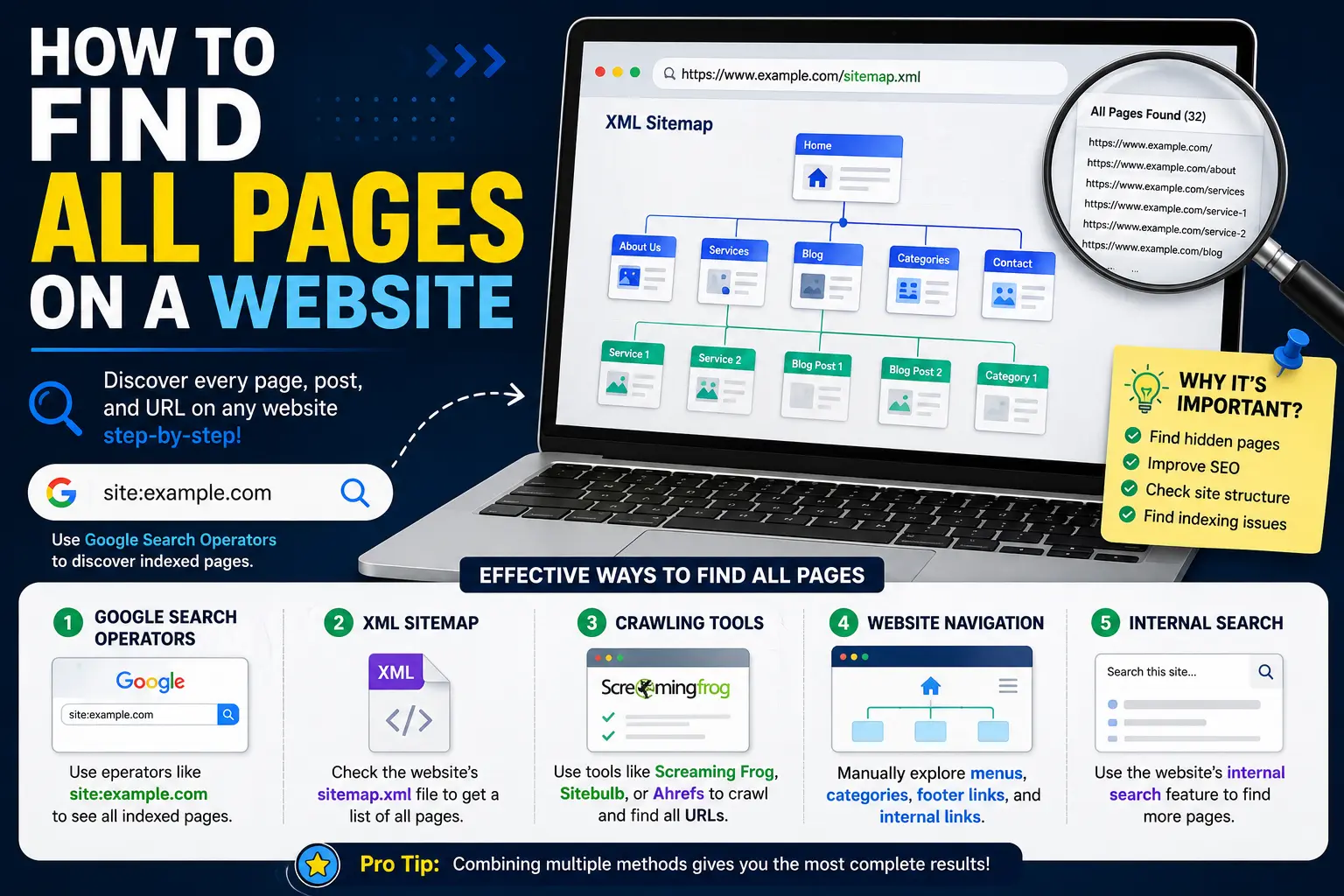
Whether you’re auditing your own site, researching a competitor, or checking a client’s project before a redesign, you’ll eventually run into the same problem: there’s no single “list all pages” button built into every website.
This guide covers how to find all pages on a website, starting with quick methods that need no tools or technical skill, then moving into more thorough options for large sites, sites with hidden pages, or sites that no longer exist in their original form.
Pick the method that matches your situation — checking your own 10-page business site is a very different task from auditing a competitor’s 5,000-page e-commerce store.
Table of Contents
Why You Might Need to Find All Pages on a Website
Before jumping into methods, it helps to know which one fits your goal:
- Auditing your own site for outdated, duplicate, or forgotten pages.
- Researching a competitor’s site structure and content strategy.
- Migrating or redesigning a website, where every existing page needs to be accounted for.
- Checking for indexed pages you didn’t know Google was showing in search results.
- Recovering lost content from a site that was redesigned or taken down.
Each of these points to a different best tool, covered below.
Method 1: Use the Site’s XML Sitemap
The fastest and most reliable way to see all pages of a website — if you have access to it — is the XML sitemap. This is a file listing every page the site owner wants search engines to know about, formatted specifically for that purpose.
Try visiting:
Replace “example.com” with the actual domain. Most websites built on WordPress, Shopify, Webflow, and similar platforms generate this file automatically.
If that URL doesn’t work, check the site’s robots.txt file, which often lists the exact sitemap location:
Inside, look for a line like:
Sitemap: https://example.com/sitemap_index.xml
Large sites sometimes split their sitemap into several smaller files (a “sitemap index”), each covering a different section, such as blog posts, products, or categories. Opening the index file will show links to each individual sitemap.
Limitation: a sitemap only shows pages the website owner chose to include. Pages deliberately hidden, newly published, or excluded on purpose won’t appear here.
Method 2: Use Google’s Site Search Operator
If you don’t have access to the sitemap, or want to see what Google has actually indexed, use the site: search operator directly in Google:
site:example.com
This returns every page from that domain currently in Google’s index. To narrow results to a specific section, add a path:
site:example.com/blog
This method shows real-world visibility — meaning it only reflects pages Google has indexed, not necessarily every page that technically exists on the site. A page can exist but be excluded here if it’s new, blocked from indexing, or considered low-value by Google.
Method 3: Use a Website Crawler Tool
For a complete, technical list of every page, a crawler (a tool that automatically visits a website and follows every link it finds, similar to how search engines discover pages) is the most thorough method.
Popular options include:
| Tool | Best For | Free Tier Limit |
| Screaming Frog SEO Spider | Detailed technical audits | 500 URLs free |
| Sitebulb | Visual site structure reports | Free trial |
| Xenu’s Link Sleuth | Very old but still functional, lightweight | Fully free |
| Online sitemap generators | Quick, browser-based scans | Usually capped at 100–500 pages |
To use a desktop crawler like Screaming Frog:
- Download and install the tool.
- Enter the website’s homepage URL.
- Start the crawl — it will follow every internal link it finds automatically.
- Export the full URL list once finished.
This method finds pages regardless of whether they’re in a sitemap or indexed by Google, as long as they’re linked from somewhere on the site. Pages with no internal links pointing to them (sometimes called “orphan pages”) can still be missed.
Method 4: Check Google Search Console (For Your Own Site)
If it’s your own website, Google Search Console (a free tool from Google showing indexing status and search performance) gives you the most accurate picture of what Google has found and indexed.
Inside Search Console:
- Go to the Pages report under the Indexing section.
- Review the “Indexed” tab for pages currently visible in search.
- Check the “Not indexed” tab to see pages Google found but excluded, along with the reason why.
This is the only method on this list that tells you both what’s visible and why certain pages aren’t, making it the best option when you manage the site directly.
Method 5: Use Browser Extensions or Simple Scraping Tools
For quick, casual checks without installing desktop software, browser-based tools can extract every link from a single page or crawl a small site directly from your browser.
These tools typically work by:
- Loading the target page.
- Scanning the page’s HTML for every <a href=””> link tag.
- Compiling a clean list of unique URLs found.
This approach works well for smaller sites or single-page audits but isn’t practical for sites with thousands of pages, since you’d need to repeat the process across every page manually unless the tool supports automatic crawling.
Method 6: Use the Wayback Machine for Historical Pages
If you need pages from a site that no longer exists, was significantly redesigned, or removed content, the Wayback Machine (a free public archive that stores snapshots of websites over time) can recover historical URLs.
Visit web.archive.org, enter the domain, and use the calendar view to browse snapshots by date. This won’t show you the current live pages, but it’s the only reliable method for recovering pages that have since been deleted or restructured.
Method 7: Combine Multiple Methods for Full Accuracy
No single method guarantees a complete list. Here’s how the coverage compares:
| Method | Finds Indexed Pages | Finds Non-Indexed Pages | Finds Deleted Pages | Requires Site Access |
| XML Sitemap | ✓ (if included) | Sometimes | ✗ | No |
| Google site: Search | ✓ | ✗ | ✗ | No |
| Crawler Tool | ✓ | ✓ (if linked) | ✗ | No |
| Search Console | ✓ | ✓ | ✗ | Yes (owner only) |
| Wayback Machine | ✗ | ✗ | ✓ | No |
For the most complete picture, especially on a large or unfamiliar website, combine the sitemap, a crawler tool, and the site: search operator. Together, they cover indexed pages, linked-but-unindexed pages, and give you a cross-check against what Google actually displays.
Common Mistakes When Trying to Find All Pages of a Website
- Relying only on the sitemap. Sitemaps can be outdated or intentionally incomplete — always cross-check with a crawler if accuracy matters.
- Assuming site: search shows every page. It only shows what Google has indexed, which is often a smaller number than what technically exists.
- Ignoring pagination and filtered URLs. E-commerce sites especially generate huge numbers of URL variations (sorting, filtering) that crawlers may capture but sitemaps often exclude on purpose.
- Forgetting subdomains. A crawl of example.com won’t automatically include blog.example.com or shop.example.com — these are treated as separate sites technically.
- Not checking for orphan pages. Pages with no internal links pointing to them can be missed by crawlers entirely, even though they’re live and accessible by direct URL.
Best Practices for Accurate Results
- Start with the sitemap for a fast overview, then confirm with a crawler if you need certainty.
- If it’s your own site, always check Google Search Console — it’s the only source with insight into indexing decisions.
- For competitor research, combine site: search with a crawler export to compare indexed versus total discoverable pages.
- Check subdomains separately if the site uses them (blog, shop, support, etc.).
- Re-run the check periodically for large or frequently updated sites, since sitemaps and indexes shift over time.
Frequently Asked Questions
How do I see all pages of a website without any tools? Use Google’s site:example.com search operator directly in the search bar, or check example.com/sitemap.xml in your browser. Both require no downloads or technical setup.
How can I find all subpages of a website I don’t own? Combine the site: search operator with a free crawler tool like Screaming Frog (free up to 500 URLs), which follows internal links to map out the site’s structure.
Why does the sitemap not show all the pages I know exist? Site owners sometimes exclude specific pages intentionally, such as thank-you pages, admin areas, or duplicate filtered URLs, since including every possible page can hurt SEO clarity.
Can I find pages that were deleted from a website? Yes. The Wayback Machine at web.archive.org stores historical snapshots of most public websites, letting you browse pages that no longer exist on the live site.
What’s the difference between a sitemap and a crawler? A sitemap is a file the site owner creates listing pages they want indexed. A crawler independently discovers pages by following links, regardless of what the site owner included in the sitemap.
Is there a way to check all pages of a website for free? Yes. Google’s site: search, most sitemap files, and free-tier crawler tools like Screaming Frog (up to 500 URLs) or Xenu’s Link Sleuth all work without any paid subscription.
Final Thoughts How to Find All Pages on a Website
There’s no single command that instantly reveals every page of any website — the right approach depends on whether you need indexed pages, all technically discoverable pages, or historical ones that no longer exist. Starting with the sitemap and Google’s site: operator covers most everyday needs, while a crawler tool gives you the most complete and accurate map when precision matters.


