
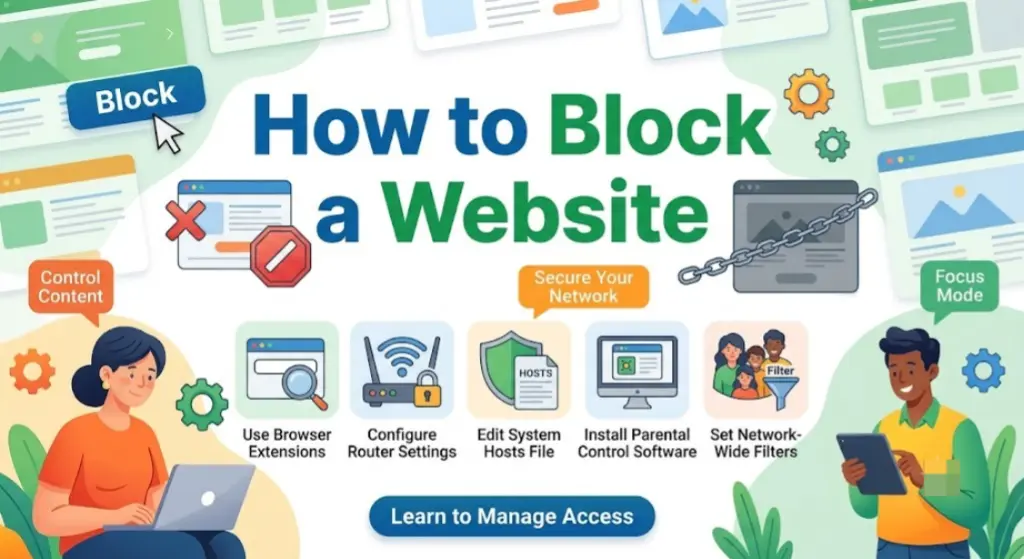
Whether you’re trying to stay focused at work, keep your kids away from inappropriate content, or just stop yourself from doom-scrolling social media, learning how to block a website is one of the most useful things you can do with any device. The good news: you don’t need to be a tech expert to do it. Every method below takes just a few minutes.
In this guide, you’ll learn how to block a website on Chrome, Windows, Mac, Android, iPhone, and even your home Wi-Fi router — using free, built-in tools and simple extensions. No confusing jargon, no unnecessary software.
Table of Contents
What Does “Blocking a Website” Actually Mean?
Before jumping into the steps, it helps to understand what’s happening behind the scenes.
Every website has an address called a URL (Uniform Resource Locator) — this is what you type into your browser to visit a page, like https://www.example.com. Inside that URL is the site’s domain name, which is essentially the site’s unique identity on the internet (for example, “youtube.com” or “facebook.com”).
When you “block a website,” you’re telling your browser, operating system, or network to refuse a connection whenever that domain is requested. Depending on the method you use, blocking can happen at one of four levels:
| Level | What It Blocks | Best For |
| Browser extension | The site inside one specific browser | Personal productivity, quick setup |
| Operating system (Hosts file) | The site on the entire device, in every browser | Parents, self-control, stricter blocking |
| Router | The site for every device on your home network | Whole-household or office control |
| DNS-level (third-party app) | The site across all devices tied to your account | Advanced parental controls, teams |
Understanding this hierarchy matters because a browser extension can be disabled in two clicks, while a router-level or hosts file block is much harder to bypass — a key detail most guides skip.
Why Block a Website? Common Use Cases
People search for “how to block a website” for a variety of real reasons:
- Productivity — blocking social media or news sites during work hours.
- Parental control — restricting children from adult content, gambling sites, or unmoderated forums.
- Digital wellbeing — reducing screen time and compulsive checking of certain apps or sites.
- Workplace policy — IT administrators restricting non-work-related domains on company networks.
- Security — preventing access to known phishing or malware domains.
Each use case usually points to a different method, which is why this guide covers multiple approaches instead of just one.
Method 1: How to Block a Website on Chrome
Chrome doesn’t have a built-in site-blocking feature, so the fastest way to block a website on Chrome is with a free extension. Here’s how:
Step-by-Step: Block a Website on Chrome Using an Extension
- Open Chrome and go to the Chrome Web Store.
- Search for a site-blocking extension such as BlockSite, StayFocusd, or Block Site — Website Blocker.
- Click Add to Chrome, then Add Extension to confirm.
- Click the extension’s icon in the top-right corner of Chrome.
- Enter the URL of the website you want to block (for example, www.youtube.com).
- Save your settings.
That’s it — the next time you or anyone using that Chrome profile tries to visit the site, the extension will block access or redirect to a blank page.
Can I Block a Website on Chrome Without an Extension?
Yes, technically — Chrome does allow Managed Users and Family Link restrictions if you’re using a Google Workspace or family account, and Chrome’s Supervised Users settings let a parent block specific sites without installing anything extra. However, for a personal Chrome profile without family management enabled, an extension remains the simplest option.
Note: If you manage multiple browsers or devices, remember that a Chrome extension only blocks the site inside Chrome. If the same site is opened using a different browser or on mobile, it won’t be blocked — you’ll need the operating-system or router-level method below for full coverage.
Method 2: Block a Website on Windows (No Extension Needed)
Windows lets you block any website system-wide, in every browser, using the Hosts file — a built-in text file that tells your computer where to send requests for a given domain.
Step-by-Step: Edit the Hosts File on Windows
- Press the Windows key, type Notepad, right-click it, and select Run as administrator.
- In Notepad, go to File > Open and navigate to: C:\Windows\System32\drivers\etc\hosts
- Change the file type filter to “All Files” so you can see the hosts file.
At the bottom of the file, add a new line for each site you want to block:
127.0.0.1 www.facebook.com127.0.0.1 facebook.com
- Save the file.
- Restart your browser for the change to take effect.
This works because 127.0.0.1 points back to your own computer instead of the actual site, so the page simply fails to load. It’s a free, no-download method that blocks the site across every browser on that device.
Method 3: Block a Website on Mac
macOS uses a similar hosts file approach, plus a built-in Screen Time feature for a more user-friendly option.
Option A: Use Screen Time (Easiest)
- Open System Settings (or System Preferences on older macOS).
- Click Screen Time, then Content & Privacy.
- Turn on Content & Privacy Restrictions.
- Under Web Content, select Limit Adult Websites or Allowed Websites Only, then add specific domains you want to restrict.
Option B: Edit the Hosts File on Mac
- Open Terminal.
- Type: sudo nano /etc/hosts and press Enter.
- Enter your Mac password when prompted.
- Add a line at the bottom: 127.0.0.1 www.example.com
- Press Control + O to save, then Control + X to exit.
- Flush the DNS cache by typing: sudo dscacheutil -flushcache
Method 4: Block a Website on Android or iPhone
Mobile blocking usually relies on either the phone’s built-in digital wellbeing tools or a dedicated app, since editing a hosts file on mobile typically requires special permissions.
On Android:
- Open Settings > Digital Wellbeing & Parental Controls.
- Tap Ways to disconnect, then set app or site timers, or use Family Link to block specific sites entirely.
On iPhone:
- Go to Settings > Screen Time.
- Tap Content & Privacy Restrictions > Content Restrictions > Web Content.
- Choose Limit Adult Websites, and use Add Website to manually block specific domains.
Method 5: Block a Website for Your Entire Home Network (Router Level)
If you want a site blocked on every device connected to your Wi-Fi — phones, tablets, laptops, smart TVs — the most efficient method is blocking it at the router.
- Open a browser and enter your router’s IP address (commonly 192.168.1.1 or 192.168.0.1).
- Log in with your router’s admin credentials.
- Look for a section called Access Restrictions, Parental Controls, or Website Filtering.
- Add the domain name you want to block.
- Save and apply the settings — most routers apply changes within a minute.
Router-level blocking is popular in households because it removes the need to configure every individual device separately, and it’s much harder for a tech-savvy teenager to bypass than a browser extension.
Chrome vs. Hosts File vs. Router: Which Should You Use?
| Method | Setup Time | Blocks All Browsers? | Blocks All Devices? | Easy to Bypass? |
| Chrome extension | 2 minutes | No | No | Yes (disable extension) |
| Hosts file (Windows/Mac) | 5 minutes | Yes | No | Moderately |
| Screen Time / Family Link | 5 minutes | Yes | No | Difficult (with passcode) |
| Router-level blocking | 10 minutes | Yes | Yes | Difficult |
If you only want to stop yourself from checking one site while working, a Chrome extension is enough. If you’re a parent trying to protect an entire household, router-level or Screen Time restrictions are far more effective.
Common Mistakes When Blocking a Website
- Forgetting the “www” and non-www version. Blocking facebook.com but not www.facebook.com (or vice versa) often leaves a loophole.
- Only blocking on one browser. A determined user can simply switch browsers unless you block at the OS or router level.
- Not saving hosts file changes as administrator. Windows will silently fail to save the file if Notepad wasn’t opened with admin rights.
- Ignoring subdomains. Some sites use a subdomain (like m.facebook.com for mobile) that isn’t automatically covered by a block on the main domain.
- Forgetting mobile apps. Blocking a website in a browser won’t stop access through a dedicated app — you’ll need app-level restrictions too.
Best Practices for Blocking Websites Effectively
- Combine methods for stronger control — for example, a hosts file block plus a router-level block.
- Regularly check your URL formatting when adding sites to a blocklist; a typo in the domain name means the block won’t work.
- For parental control, set a separate admin password so restrictions can’t be removed without permission.
- Periodically use a website checker tool to confirm a blocked site is genuinely inaccessible from the device or network.
- Clear your browser cache after making changes — cached pages can sometimes load even after a site is blocked.
Frequently Asked Questions
How do I block a website on Google Chrome for free? Install a free extension like BlockSite or StayFocusd from the Chrome Web Store, then add the site’s URL to the blocklist inside the extension’s settings.
Can I block a website on Chrome without installing anything? Yes, if you’re using a Chrome profile managed through Family Link or Google Workspace, an administrator can block sites without any extension. Otherwise, an extension is the simplest no-cost option.
How do I block a website on Google without using an extension? Edit your device’s hosts file (Windows or Mac) to redirect the site to 127.0.0.1, which blocks it across every browser, not just Chrome.
Does blocking a website delete my browsing history for that site? No. Blocking only prevents future access — it doesn’t clear existing browser history or cookies already stored from past visits.
Can a website block still be bypassed? Yes, especially browser-extension blocks, which can be disabled in a few clicks. Hosts file and router-level blocks are significantly harder to bypass, though a tech-savvy user could still change router settings or use a VPN.
Is it possible to block a website only during certain hours? Yes. Most dedicated blocking extensions (like StayFocusd or Cold Turkey) and Screen Time/Family Link tools let you schedule blocks for specific hours instead of blocking permanently.
Final Thoughts
There’s no single “best” way to block a website — it depends on how much control you need and how many devices are involved. For quick personal productivity, a Chrome extension takes two minutes to set up. For household-wide or workplace restrictions, editing the hosts file or configuring your router gives you far more reliable, harder-to-bypass control.
Start with the method that matches your situation, and don’t hesitate to combine a couple of layers — browser, device, and network — for the strongest results.


