
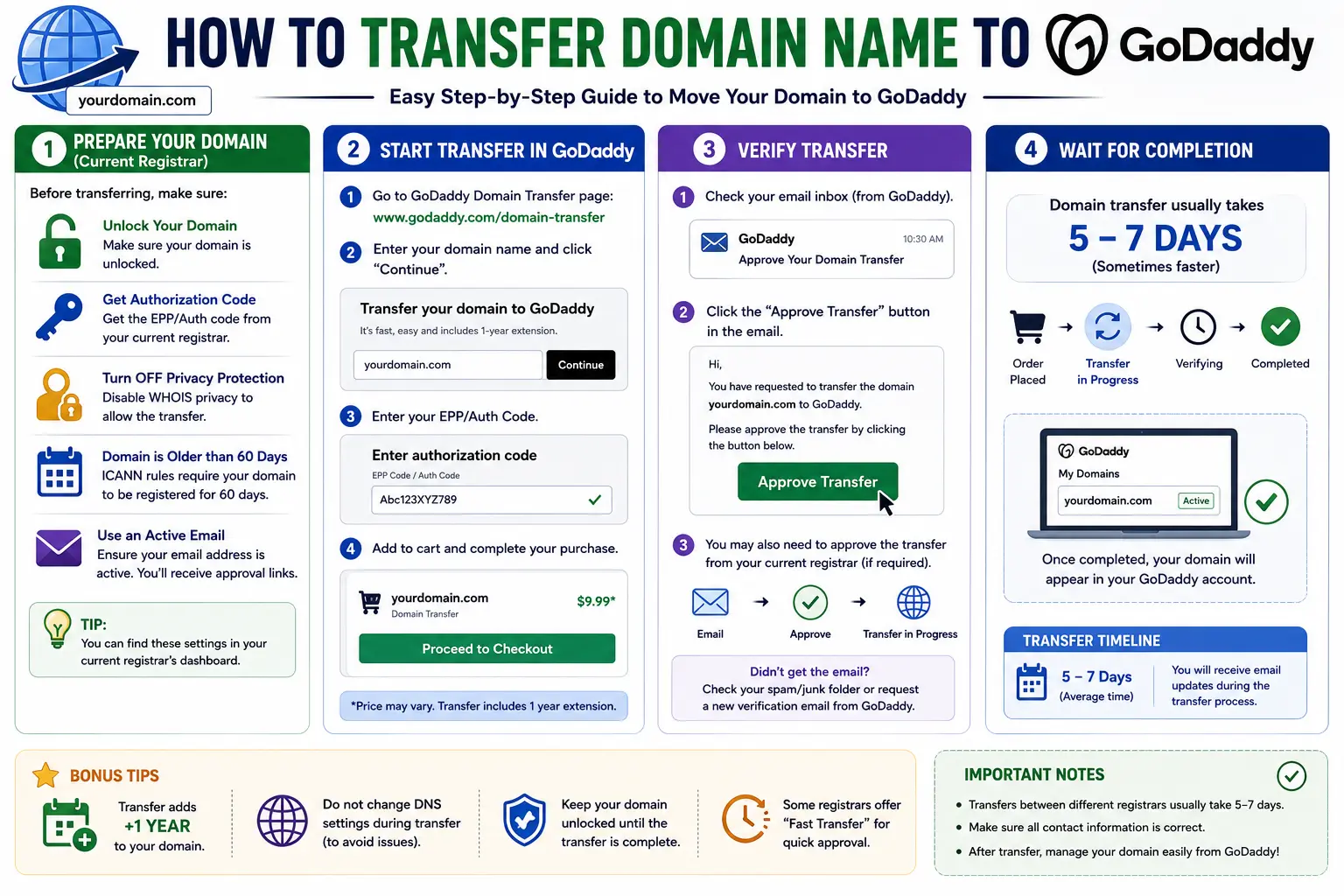
If you want to consolidate your domains, get better pricing, or simplify management, learning how transfer domain name to GoDaddy is a straightforward process — as long as you follow the right order of steps. Done wrong, a transfer can stall for days or even fail outright.
A domain transfer moves ownership management from your current registrar to GoDaddy, without changing your actual website, email, or hosting, as long as you handle DNS correctly. This guide walks through every step: preparing your domain, initiating the transfer, and what to do if something goes wrong along the way.
Table of Contents
What Does It Mean to Transfer a Domain to GoDaddy?
Transferring a domain means moving its registration record from one registrar to another — in this case, to GoDaddy. Your domain itself doesn’t move; only the company managing its registration and renewal changes.
It’s easy to confuse a domain transfer with:
- Changing hosting — moving where your website’s files live, which is separate.
- Changing DNS — pointing your domain to different servers, which you may or may not need to do during a transfer.
- Changing your website’s domain name — swapping to a completely different name, covered in our guide on how to change your domain name on WordPress.
A registrar transfer keeps your existing domain name exactly as it is. Only the company you pay to manage and renew it changes.
Before You Start: Domain Transfer Requirements
Before you can transfer a domain name to GoDaddy, confirm the following:
- The domain is at least 60 days old since registration or its last transfer (an ICANN-wide rule for all registrars).
- The domain isn’t locked — most registrars enable a transfer lock by default to prevent unauthorized transfers.
- You have access to the domain’s admin email to approve the transfer.
- The domain isn’t expired — expired domains often need to be renewed at the current registrar first.
- You have an EPP/Authorization code (sometimes called an Auth Code or Transfer Code), a unique password your current registrar generates to authorize the move.
How to Transfer Domain Name to GoDaddy: Step-by-Step
Step 1: Unlock the Domain at Your Current Registrar
- Log into your current registrar’s account.
- Find your domain’s management settings.
- Locate Domain Lock or Transfer Lock and switch it to Unlocked.
This lock exists specifically to stop unauthorized transfers, so it must be turned off before GoDaddy (or any registrar) can begin the process.
Step 2: Get Your Authorization (EPP) Code
- In your current registrar’s dashboard, look for Transfer Domain or Get Authorization Code.
- Request the code — most registrars email it to the domain’s registered contact address.
- Copy the code exactly; it’s case-sensitive and typically expires after a set number of days.
If you can’t find this option, search your registrar’s help documentation for “EPP code” or “authorization code,” since the exact wording varies between providers.
Step 3: Confirm Your WHOIS Contact Email Is Current
The transfer approval email goes to the address listed in your domain’s WHOIS/registrant contact information. If that email is outdated, you won’t receive the confirmation link needed to approve the transfer.
- Log into your current registrar and check Contact Details or WHOIS Info.
- Update the email if it’s no longer active.
- Note: some registrars lock changes to contact info for a short period right after an update, so make this change a few days before starting the transfer if possible.
Step 4: Start the Transfer From Your GoDaddy Account
- Log into (or create) your GoDaddy account.
- Go to Domains → Transfer Domains.
- Enter the domain name you want to move.
- Enter the EPP/authorization code when prompted.
- Review the transfer order — this typically includes a one-year renewal charged at GoDaddy’s standard rate.
- Complete checkout to submit the transfer request.
Step 5: Approve the Transfer via Email
- Check the inbox of the email address listed in your domain’s WHOIS contact.
- Look for a transfer confirmation email, usually from your current registrar or a shared registrar transfer system.
- Click the approval link to confirm you authorize the move.
Some registrars also require you to log in and manually approve the outgoing transfer from your account dashboard, in addition to the email confirmation.
Step 6: Wait for the Transfer to Complete
Most domain transfers finish within 5 to 7 days, though some can complete faster if the losing registrar approves it immediately. ICANN sets a maximum transfer window of 7 days for most generic extensions like .com, .net, and .org; country-specific extensions (like .io or .co) can follow different rules.
During this window:
- Your website, email, and DNS settings stay active and unaffected.
- You’ll typically get status update emails from both the old and new registrar.
Step 7: Verify the Transfer at GoDaddy
Once complete:
- Log into your GoDaddy account.
- Go to My Domains and confirm the domain now shows GoDaddy as the registrar.
- Check DNS settings to make sure they match your previous configuration, especially if your website or email depends on specific records.
Domain Transfer Timeline at a Glance
| Step | Typical Time |
| Unlocking domain + getting EPP code | Minutes to a few hours |
| Starting transfer at GoDaddy | Minutes |
| Email approval | As soon as you click the link |
| Registry transfer window | Up to 7 days (often faster) |
| DNS/website impact | None, if DNS records are preserved |
What Happens to My Website and Email During the Transfer?
This is the most common concern, and the short answer is: nothing changes automatically. A registrar transfer only changes who manages the domain’s registration — it does not touch your DNS records, hosting, or email unless you manually change them.
As long as your DNS records (A records, MX records, CNAME records) are copied over correctly, your site and email keep working without interruption throughout the transfer window. If you’re unfamiliar with how DNS routes traffic in the background, our guide on what is a domain name system explains how these records connect your domain to your server.
Common Mistakes When Transferring a Domain to GoDaddy
- Forgetting to unlock the domain first — the transfer will fail immediately if the domain is still locked at the losing registrar.
- Using an expired or mistyped EPP code — codes are case-sensitive and often expire after a set number of days.
- Missing the approval email — an outdated WHOIS contact email means you’ll never see the confirmation link.
- Transferring within 60 days of registration — ICANN rules block transfers during this window; you’ll need to wait it out.
- Assuming hosting moves with the domain — a registrar transfer never moves your website files or email; those live with your hosting provider, entirely separate from the domain registrar.
- Not backing up DNS records first — if records aren’t preserved correctly, your site or email can briefly go down.
Best Practices for a Smooth Domain Transfer
- Screenshot or copy your current DNS records before starting, as a backup in case anything resets.
- Start the transfer with several days of buffer before any renewal deadline, since a domain expiring mid-transfer can complicate things.
- Keep your current registrar account active until the transfer fully completes, in case you need to cancel or troubleshoot.
- Double-check WHOIS privacy settings after the transfer completes, since some registrars reset privacy protection by default.
- If you manage several domains, transfer one first as a test before moving your entire portfolio.
Transferring vs. Changing Nameservers: Know the Difference
People sometimes assume they need a full transfer just to point a domain somewhere new — that’s not the case.
| Domain Transfer | Nameserver Change | |
| What changes | Registrar of record (who manages the domain) | Where DNS is hosted/managed |
| Requires EPP code | Yes | No |
| Takes up to 7 days | Yes | No, usually instant to a few hours |
| Best for | Consolidating domains under one registrar | Pointing a domain to new hosting without switching registrars |
If your only goal is to point an existing domain to a new host, you likely just need a nameserver change, not a full transfer. Reserve the transfer process for when you actually want GoDaddy managing the domain’s registration and renewals going forward.
Frequently Asked Questions
How long does it take to transfer a domain name to GoDaddy? Most transfers complete within 5 to 7 days, based on ICANN’s standard transfer window. Some finish sooner if your current registrar approves the release immediately instead of waiting out the full period.
Does transferring a domain to GoDaddy affect my website? No, as long as your DNS records are preserved during the transfer. Your website, email, and hosting stay exactly as they were; only the registrar managing the domain changes.
Can I transfer a domain that was just registered? No. ICANN requires domains to be at least 60 days old since registration (or the last transfer) before they’re eligible to move to a new registrar.
Do I need to pay to transfer a domain to GoDaddy? Yes, in most cases. A transfer typically includes a one-year renewal at GoDaddy’s standard rate, charged at the time you submit the transfer request.
What is an EPP code and where do I find it? An EPP code (also called an authorization or transfer code) is a unique password generated by your current registrar to confirm you own the domain and authorize its move. You can usually request it from your domain’s management dashboard.
What happens if I don’t approve the transfer email in time? If the approval email isn’t confirmed within the allowed window, the transfer request typically expires and you’ll need to restart the process from GoDaddy.
Final Thoughts How Transfer Domain Name to GoDaddy
Transferring a domain name to GoDaddy comes down to five things: unlocking the domain, grabbing the EPP code, starting the transfer, approving the confirmation email, and waiting out the registry’s transfer window. Your website and email stay untouched the entire time as long as DNS records are preserved. Follow the steps in order, keep your WHOIS contact email current, and the whole process should complete without any downtime.


