
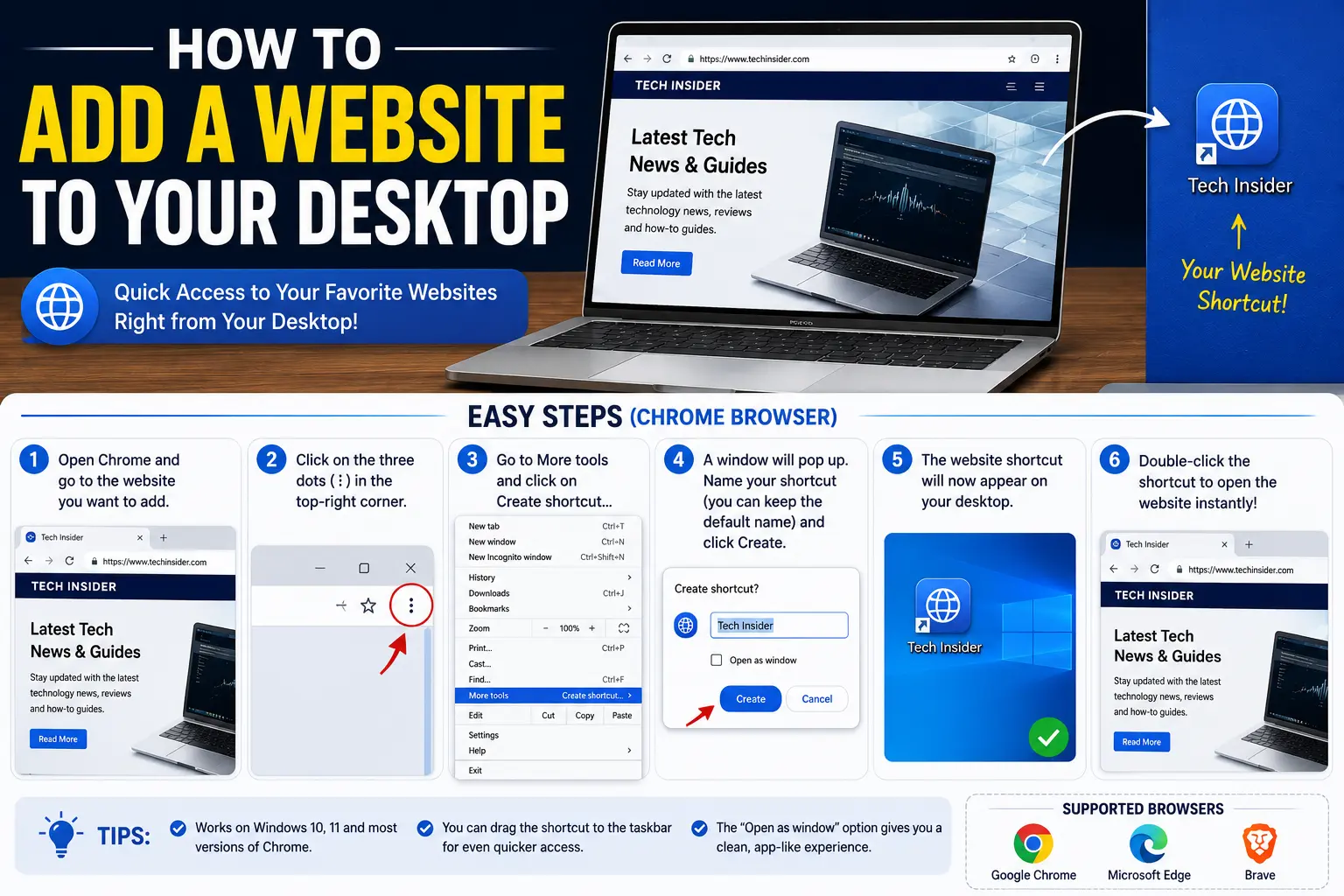
If there’s a website you visit every single day — email, a work dashboard, a streaming service — typing the address every time or digging through bookmarks gets old fast. Turning it into a clickable icon on your desktop fixes that in under a minute.
This guide covers how to add a website to your desktop on Windows and Mac, using every major browser, plus the mobile equivalent for phones and tablets. No downloads, extensions, or technical skill required — just your browser’s built-in tools.
Table of Contents
What a Website Desktop Shortcut Actually Does
Before jumping into steps, it helps to understand what you’re creating. A website desktop icon isn’t a copy of the site saved to your computer — it’s a small file that tells your browser which page to open when you double-click it.
Depending on the browser, this shortcut behaves in one of two ways:
- Standard shortcut — opens the site in a normal browser tab, exactly like typing the URL yourself.
- App-style shortcut (sometimes called a Progressive Web App, or PWA — a website built to behave like a standalone app) — opens in its own window with no address bar or tabs, making it feel like a real installed program.
Most modern browsers let you choose which style you want when creating the shortcut.
How to Add a Website to Your Desktop Using Google Chrome
Chrome has the most consistent method across both Windows and Mac.
- Open Chrome and go to the website you want to save.
- Click the three-dot menu in the top-right corner.
- Select Cast, save, and share (on newer versions) or More tools (on older versions).
- Click Create shortcut.
- Type a name for the shortcut.
- Check Open as window if you want it to behave like a standalone app, or leave it unchecked to open as a regular browser tab.
- Click Create.
The icon will appear directly on your desktop. On Windows, it also gets added to your Start menu under a “Chrome Apps” folder. On Mac, it’s placed in your Applications folder, from which you can drag it to the Dock for even faster access.
How to Add a Website to Your Desktop Using Microsoft Edge
Edge uses a slightly different name for the same feature, since it treats website shortcuts as installable apps by default.
- Open Edge and navigate to the website.
- Click the three-dot menu in the top-right corner.
- Hover over Apps.
- Click Install this site as an app.
- Confirm the app name, then click Install.
Edge automatically creates a desktop icon and a Start menu entry, and the site opens in its own clean window without Edge’s usual tabs or address bar. You can find and manage every site you’ve installed this way by visiting edge://apps in the address bar.
How to Add a Website to Your Desktop Using Firefox
Firefox doesn’t include a direct “create shortcut” button in its main menu, but the drag-and-drop method works reliably here, as it does in most browsers.
- Open Firefox and go to the website.
- Resize the Firefox window so part of your desktop is visible behind it.
- Click and hold the small padlock or site icon on the left side of the address bar.
- Drag it onto the visible desktop area, then release.
This creates an internet shortcut file that opens the page in your default browser when double-clicked.
How to Add a Website to Your Desktop on a Mac (Safari)
Safari’s method depends slightly on your macOS version, but the general process stays consistent.
- Open Safari and go to the website.
- Click File in the menu bar.
- Select Add to Dock (on newer macOS versions) or use the drag method below on older versions.
- Confirm the name if prompted.
If your version of Safari doesn’t show an “Add to Dock” option, resize the Safari window, then drag the small website icon from the address bar directly onto your visible desktop — the same drag-and-drop approach used in Firefox.
Comparison: Which Method Creates the Best Shortcut
| Method | Opens As | Works Offline Look | Best For |
| Chrome “Create shortcut” (window mode) | App-style window | Yes, feels native | Daily tools like email, dashboards |
| Chrome “Create shortcut” (tab mode) | Regular browser tab | No | Sites you browse casually |
| Edge “Install this site as an app” | App-style window | Yes | Frequently used web apps |
| Firefox drag-and-drop | Opens in default browser tab | No | Quick, no-menu shortcuts |
| Safari “Add to Dock” | App-style, Dock icon | Yes (macOS) | Mac users who prefer the Dock over desktop clutter |
If you want the site to feel like a real installed application, Chrome’s “Open as window” option or Edge’s “Install this site as an app” are the strongest choices. If you just want a fast link with no extra behavior, drag-and-drop is quicker and works almost everywhere.
How to Add a Website to Your Home Screen on Mobile
The mobile version of this same idea is usually called adding to the home screen rather than the desktop, but it works the same way — one tap opens the site directly.
On iPhone or iPad (Safari):
- Open the website in Safari.
- Tap the Share icon (the square with an arrow pointing up).
- Scroll down and tap Add to Home Screen.
- Edit the name if needed, then tap Add.
On Android (Chrome):
- Open the website in Chrome.
- Tap the three-dot menu in the top-right corner.
- Tap Add to Home screen.
- Confirm the name, then tap Add.
On both platforms, the resulting icon behaves almost identically to a desktop shortcut — tapping it opens the site directly, sometimes in a simplified, app-like view if the site supports it.
Common Mistakes When Making a Website Shortcut
- Confusing a shortcut with an actual saved copy of the site. The shortcut only stores the web address — it still needs an internet connection to load the page.
- Creating the shortcut from the wrong page. If you’re on a subpage (like an inbox view) instead of the homepage, the shortcut will always open that exact subpage.
- Not checking “Open as window.” Skipping this in Chrome or Edge means the site opens as a regular tab inside your full browser, not as its own clean window.
- Deleting the browser’s underlying app data. On Windows, uninstalling or resetting Chrome/Edge can also remove the shortcuts they created, since they’re tied to that browser’s installed apps list.
- Expecting the same steps across all browsers. Each browser labels this feature differently — “Create shortcut,” “Install this site as an app,” and “Add to Dock” are the same basic idea with different names.
Best Practices for Organizing Website Shortcuts
- Use app-style windows (Chrome’s “Open as window” or Edge’s install feature) for tools you use daily — email, project boards, calendars — so they feel separate from casual browsing.
- Rename shortcuts clearly if the default page title is long or unclear.
- On Windows, group multiple website shortcuts into a folder if your desktop gets cluttered.
- On Mac, drag app-style shortcuts to the Dock instead of leaving them scattered on the desktop, for faster access.
- Periodically remove shortcuts for sites you no longer use — from chrome://apps on Chrome or edge://apps on Edge — to keep things tidy.
Frequently Asked Questions
How do I save a website to my desktop without an app-style window? In Chrome, use the same “Create shortcut” option but leave the “Open as window” box unchecked. The icon will still appear on your desktop, but clicking it opens the site as a normal browser tab.
Why doesn’t my website shortcut open the page anymore? This usually happens if the underlying browser (Chrome or Edge) was reset, updated significantly, or uninstalled, since app-style shortcuts are tied to that browser’s internal apps list. Recreate the shortcut using the same method to fix it.
Can I add a website to my desktop without Chrome or Edge? Yes. Firefox and Safari both support the drag-and-drop method, dragging the address bar icon onto a visible part of your desktop, which works without any built-in “create shortcut” menu.
How do I make a website icon look like a real app icon instead of a browser icon? Many websites with well-configured favicons will automatically show their own logo instead of a generic browser icon. If it still shows a generic icon, you can manually replace it through the shortcut’s file properties on Windows or “Get Info” on Mac.
Is adding a website to my desktop the same as installing an app? Not exactly. It creates a shortcut or, in browsers that support it, a lightweight Progressive Web App. It doesn’t download the website’s files to your computer — it still requires an internet connection to load content.
How do I remove a website shortcut I no longer need? Simply delete the icon from your desktop like any other file. If it was created as an installed app in Chrome or Edge, you can also remove it fully from chrome://apps or edge://apps to clear it from the browser’s internal list.
Final Thoughts
Adding a website to your desktop takes less than a minute once you know where the option lives in your browser — and the exact steps depend only on which browser you use, not on any technical skill. Chrome and Edge offer the cleanest, app-like experience with a built-in menu option, while Firefox and Safari rely on a simple drag-and-drop. Either way, the sites you check constantly are now one click away instead of buried in bookmarks.


