
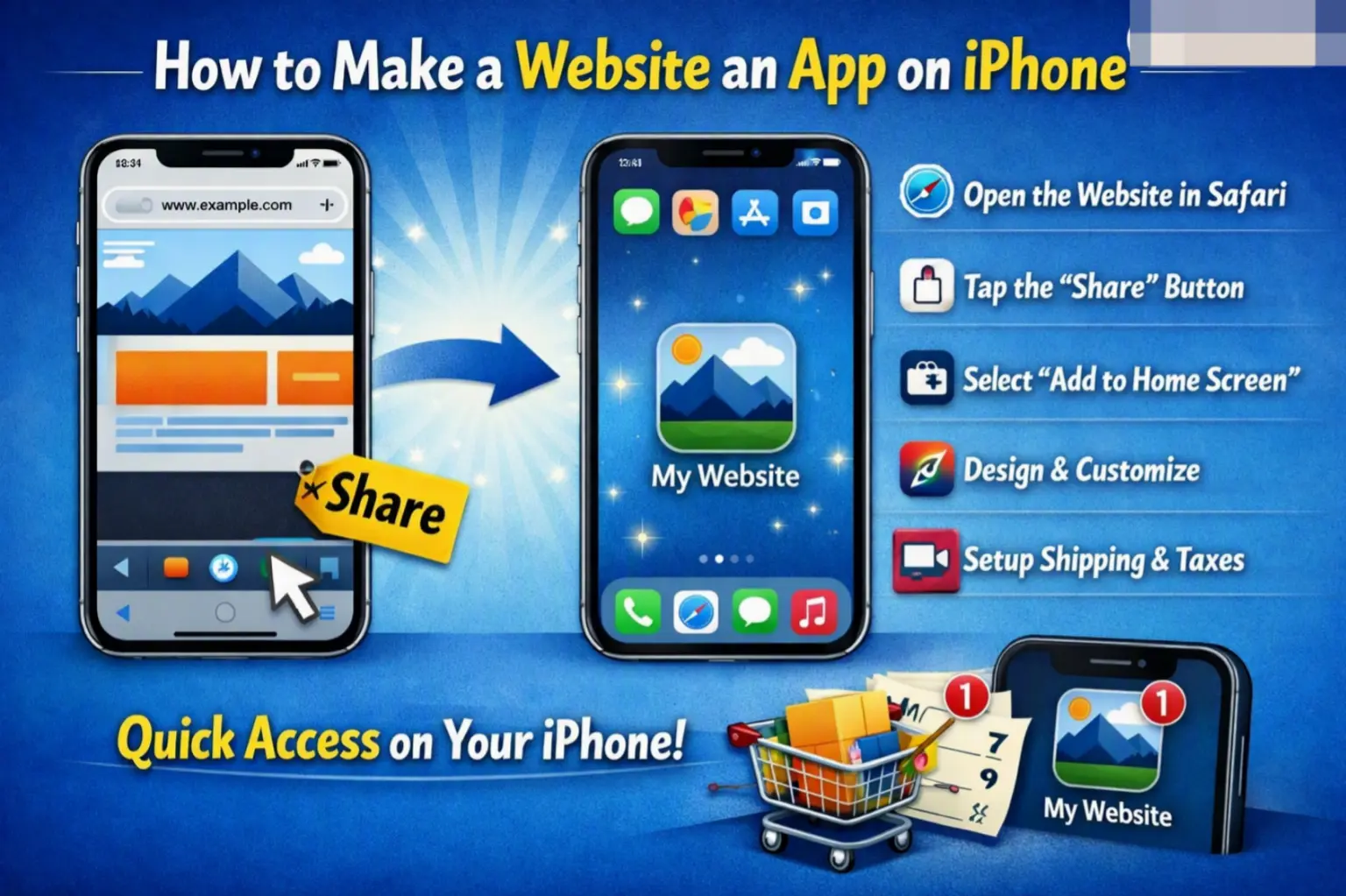
If you open the same website every day — your email, a news site, or a work dashboard — typing the address or digging through Safari bookmarks each time wastes minutes you don’t need to waste. Knowing how to make a website an app on iPhone solves this: the site gets its own icon on your Home Screen and opens in a clean, full-screen window, just like any other app.
This guide covers exactly how to do it using Safari’s built-in tools, what changed in iOS 26, and how to fix it when the option doesn’t show up.
Table of Contents
What Does It Mean to “Turn a Website Into an App”?
When people talk about turning a website into an app on iPhone, they usually mean creating a web app — a Home Screen shortcut that opens the site without Safari’s address bar, tabs, or toolbar. It looks and feels like a real app, even though it’s really just a website loading in a dedicated window.
This is different from a native app you’d download from the App Store. A native app is built specifically for iOS and installed through Apple’s store. A web app is simply a website “wrapped” to behave like one, using a browser feature rather than a separate download.
Some websites are built as Progressive Web Apps (PWAs) — sites specifically coded to support offline access, push notifications, and full-screen display. These give the smoothest app-like experience. But as you’ll see below, iPhone can now turn almost any website into a web app, even ones that weren’t built with this in mind.
Before You Start: What You Need
- An iPhone running iOS 16.4 or later (for web app behavior); iOS 26 adds extra control over this feature.
- The Safari browser (this feature is built into Safari and isn’t available the same way in Chrome or other iPhone browsers).
- The website open on the page you want to launch by default.
No extra apps, accounts, or technical skill are required.
How to Make a Website an App on iPhone: Step-by-Step
Here’s the core method, which works across recent versions of iOS:
- Open Safari and go to the website you want to turn into an app.
- Tap the Share button — the square icon with an upward-pointing arrow, usually at the bottom of the screen (or next to the address bar if your tabs are set to top or bottom layout).
- Scroll through the share sheet and tap Add to Home Screen. If you don’t see it, tap Edit Actions at the bottom of the list and add it from there.
- If a toggle labeled Open as Web App appears, make sure it’s turned on (green). This is what makes the site open without Safari’s address bar and tabs.
- Edit the name if you’d like something shorter or clearer than the site’s default title.
- Tap Add in the top-right corner.
An icon now appears on your Home Screen. Tapping it opens the website in its own app-style window.
What’s New in iOS 26
Starting with iOS 26, Apple changed how this feature works in one important way: the Open as Web App toggle now appears for every website, not just ones specifically coded as PWAs. Previously, unsupported sites would only ever open inside a regular Safari tab, even after being added to the Home Screen. Now, you can force almost any site to behave like a standalone app, complete with its own window and app-switcher card, by leaving that toggle switched on during setup.
If you’d rather keep a simple bookmark instead of an app-style shortcut, just switch the toggle off before tapping Add.
Web App vs. Regular Bookmark: What’s the Real Difference?
| Feature | Web App (Open as Web App: On) | Regular Bookmark (Toggle Off) |
| Opens in its own window | Yes | No — opens inside Safari |
| Address bar and tabs visible | No | Yes |
| Appears in the app switcher separately | Yes | No |
| Push notifications (if the site supports them) | Yes | No |
| Feels like a native app | Yes | No |
Use a web app for sites you visit constantly and want to feel like a dedicated tool. Use a regular bookmark for pages you check occasionally, where the full Safari interface (tabs, search, history) is actually useful.
Real-World Use Cases
- Email and productivity tools: Turn Gmail, Outlook, or a project management dashboard into a one-tap web app instead of hunting for the tab.
- News and content sites: Keep your go-to news source or blog one tap away, without cluttering your bookmarks bar.
- Internal company tools: Employees can turn an internal web portal into an app-style shortcut without needing IT to publish a native app.
- Streaming or utility sites: Sites like webmail, weather dashboards, or scheduling tools benefit from the distraction-free, full-screen view.
Common Mistakes When Making a Website an App
- Using a third-party browser instead of Safari: On iPhone, this feature only works reliably through Safari. Chrome and other browsers don’t offer the same Home Screen web app behavior.
- Forgetting to check the “Open as Web App” toggle: Without it, you’ll get a plain bookmark that still opens inside Safari’s regular tab view.
- Adding the wrong subpage: If you add a specific inbox view or article page instead of the site’s homepage, the shortcut will always reopen that same exact page.
- Expecting notifications automatically: Turning a site into a web app doesn’t automatically enable push notifications — the site still needs to request that permission separately, and you still need to allow it.
- Confusing this with downloading an app: A web app shortcut doesn’t install anything from the App Store. It’s a bookmark that behaves like an app, not a native application.
Best Practices
- Rename the shortcut to something short during setup so it’s easy to recognize on a crowded Home Screen.
- Group frequently used web apps into a folder alongside your native apps for a cleaner layout.
- Only turn sites you use daily into web apps — treating every bookmark this way defeats the purpose.
- If a site is a proper PWA, it’ll usually feel smoother and support more app-like features (like notifications) than a site that isn’t.
How to Remove a Website App From Your iPhone
If you want to undo this later:
- Touch and hold the web app’s icon on your Home Screen.
- Tap Remove App or Delete Bookmark (wording can vary slightly by iOS version).
- Confirm the removal.
This only deletes the shortcut — it doesn’t delete the website, your browsing history, or any account you’re logged into.
Frequently Asked Questions
How do you turn a website into an app on iPhone without using Safari?
On iPhone, Safari is required for this specific “Add to Home Screen” feature. Other browsers, including Chrome, don’t currently offer the same built-in option for creating app-style Home Screen shortcuts on iOS.
Why don’t I see the “Open as Web App” toggle?
This toggle appears based on your iOS version and the site itself. On iOS 26 and later, it appears for virtually every website. On earlier versions, it may only appear for sites built as Progressive Web Apps.
Does making a website an app use more storage?
No meaningful amount. It creates a lightweight shortcut and a small saved configuration, similar in size to a bookmark, not a full app download.
Can I make a website into an app on iPhone if it’s not a PWA?
Yes. As of iOS 26, the “Open as Web App” toggle works for regular websites too, not just ones specifically built as Progressive Web Apps. On older iOS versions, non-PWA sites will still open in Safari itself when tapped.
Will the web app update automatically when the website changes?
Yes. Since the web app is still loading the live website behind the scenes, any updates to the site’s content appear automatically, the same as if you visited it in a normal Safari tab.
Can I add more than one website as an app on my iPhone?
Yes, there’s no built-in limit. You can add as many website shortcuts as you like and organize them into folders just like regular apps.


