
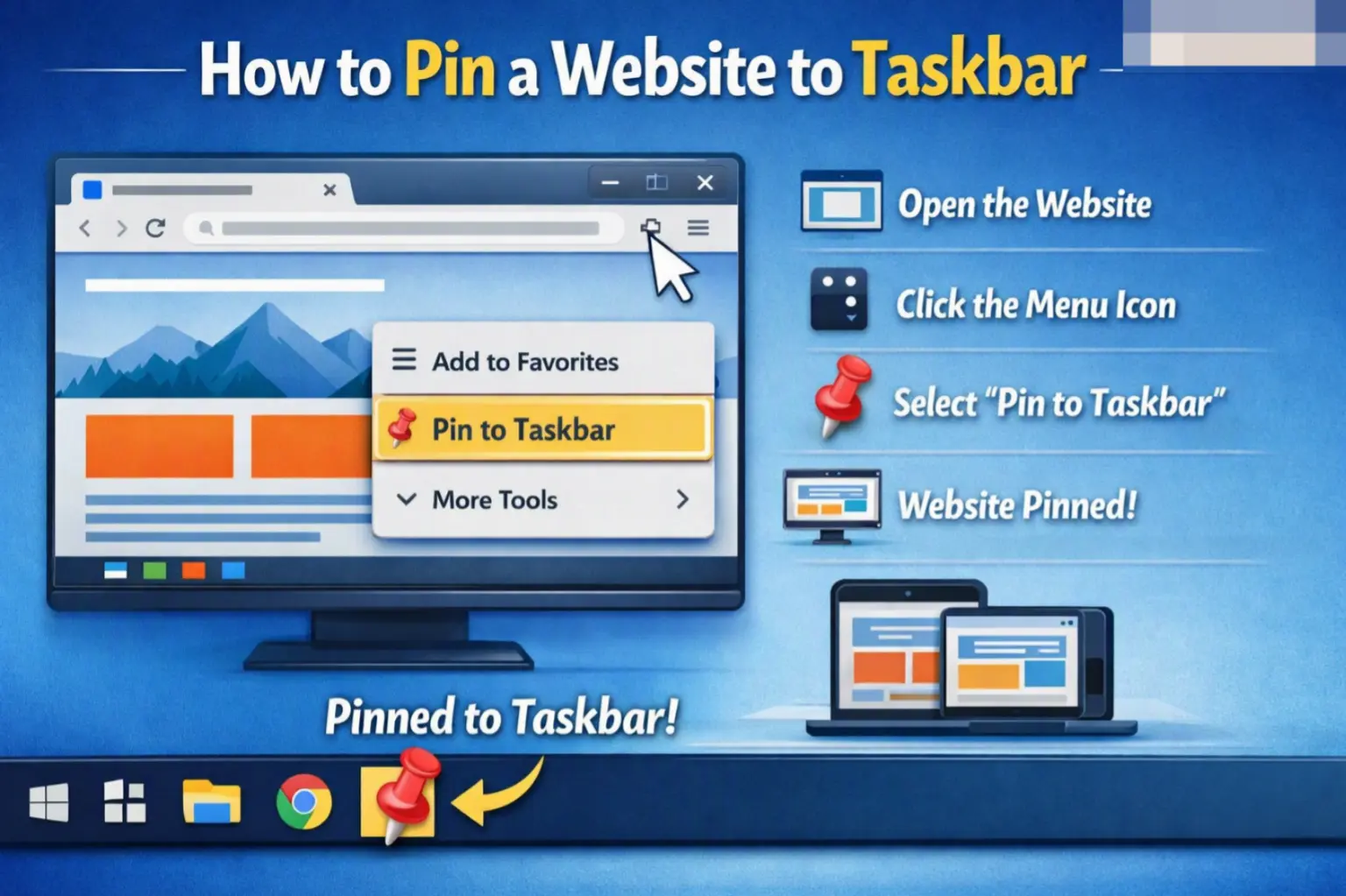
If you visit a website every single day — like Gmail, YouTube, or a work dashboard — typing the URL or digging through bookmarks every time gets old fast. The fix is simple: learn how to pin a website to taskbar so it opens with a single click, just like a real app.
In this guide, you’ll learn exactly how to pin a website to your taskbar on Windows 10 and Windows 11, using Chrome, Edge, or Firefox. We’ll also cover why this works, what to do when the option is missing, and how to remove a pinned site later.
Table of Contents
What Does “Pinning a Website to the Taskbar” Actually Mean?
The taskbar is the bar at the bottom of your Windows screen that holds your Start menu, open apps, and the clock. When you “pin” something to it, you’re placing a permanent shortcut icon there so it’s always visible, even when the app isn’t running.
Normally, only installed programs (like Word or Spotify) can sit on the taskbar. But modern browsers let you turn any website into a lightweight app-like shortcut. This feature is officially called installing a Progressive Web App (PWA) — a technology that lets a website behave like a desktop application, complete with its own window, icon, and taskbar shortcut.
Think of it like turning a webpage into a mini standalone program, without needing to download or install traditional software.
Why Pin a Website to Your Taskbar? (Real-World Use Cases)
- Faster access: One click opens Gmail, Notion, or your CRM instead of opening a browser, then a new tab, then typing the address.
- Cleaner browsing: The pinned site opens in its own window, without tabs, bookmarks bar, or address bar — so it feels focused, like a real app.
- Better multitasking: You can switch to your pinned site the same way you switch between other open apps, using Alt+Tab or the taskbar itself.
- Great for daily tools: Popular picks include Gmail, Google Calendar, WhatsApp Web, Trello, Canva, ChatGPT, and internal company portals.
Before You Start: What You Need
- Windows 10 or Windows 11.
- A modern browser: Google Chrome, Microsoft Edge, or Firefox (steps differ slightly per browser, covered below).
- The website open in your browser, ready to pin.
No extra software or technical skill is required.
How to Pin a Website to Taskbar Using Google Chrome
This is the most common method, since Chrome is the most widely used browser. Here’s how to pin website to taskbar Google Chrome, step by step:
- Open Google Chrome and go to the website you want to pin (for example, mail.google.com).
- Click the three-dot menu (⋮) in the top-right corner of the browser.
- Hover over Cast, save, and share (in newer Chrome versions) or look directly for More tools.
- Click More tools, then select Create shortcut…
- In the pop-up box, check the box that says “Open as window.” This step matters — without it, Chrome creates a normal desktop shortcut instead of an app-style one.
- Click Create. Chrome will automatically open the site in its own app window and, on most systems, add it to the taskbar right away.
- If it doesn’t appear automatically, right-click the new app’s icon (either on the desktop or in the app window’s taskbar entry) and select Pin to taskbar.
That’s it — the website now behaves like an installed app.
Quick Alternative: Using the Install Icon
Some websites show a small install icon (a monitor with a downward arrow) inside the address bar. If you see it:
- Click the install icon.
- Click Install in the pop-up.
- Once the app window opens, right-click its taskbar icon and choose Pin to taskbar.
How to Pin a Website to Taskbar on Windows 11 (Microsoft Edge)
Since Edge is built into Windows 11, this method needs zero extra installation.
- Open Microsoft Edge and navigate to the website.
- Click the three-dot menu (…) in the top-right corner.
- Select Apps.
- Click Install this site as an app.
- Confirm the app name (you can rename it if you like) and click Install.
- The site opens in its own app window. Right-click the app’s icon on the taskbar and select Pin to taskbar.
This method is especially popular because Windows 11 treats these installed sites almost exactly like native apps, including Start menu integration and jump lists.
How to Pin a Website to Taskbar Using Firefox
Firefox doesn’t support the “install as app” feature the same way Chrome and Edge do, but you can still get a similar result:
- Open the website in Firefox.
- Drag the site icon (favicon) from the address bar directly onto your desktop to create a shortcut.
- Right-click the desktop shortcut and select Pin to taskbar.
The result works, but the site will still open inside a regular Firefox browser window (with tabs and the address bar visible), rather than a clean standalone app window.
Comparison: Chrome vs Edge vs Firefox for Pinning Websites
| Feature | Google Chrome | Microsoft Edge | Firefox |
| App-style window (no tabs/address bar) | Yes | Yes | No |
| Built into Windows 11 | No (needs install) | Yes | No |
| Auto-pins to taskbar | Sometimes | Sometimes | No (manual only) |
| Best for | Most users | Windows 11 users | Basic shortcut only |
How Do I Pin a Website to My Taskbar Without Opening a New Window Every Time?
This is a common point of confusion. Once you’ve pinned the site correctly using the “Open as window” or “Install this site as an app” method, clicking the taskbar icon should always open that same clean, dedicated window — not a full browser with dozens of tabs. If it keeps opening a regular browser window instead, it usually means the shortcut was created without checking the “app window” option, so it defaults to a normal bookmark-style shortcut.
Common Mistakes When Pinning a Website to the Taskbar
- Forgetting to check “Open as window”: This is the single biggest reason people end up with a plain shortcut instead of an app-like one.
- Confusing “Pin to Start” with “Pin to taskbar”: These are two different locations in Windows. Make sure you’re right-clicking and choosing the taskbar option specifically.
- Pinning the wrong page: If you pin a specific inbox or subpage instead of the homepage, the shortcut may always load that exact page instead of the site’s main entry point.
- Expecting notifications automatically: Pinning a site doesn’t automatically enable push notifications — that’s a separate browser permission.
Best Practices for a Cleaner Taskbar Setup
- Rename the app shortcut to something short and recognizable during the install step.
- Only pin sites you use daily — a cluttered taskbar defeats the purpose.
- Use Edge on Windows 11 if you want the deepest integration (jump lists, Start menu tiles, taskbar previews).
- Periodically review pinned sites and unpin ones you no longer use.
How to Remove a Pinned Website From the Taskbar
If you want to undo this later:
- Right-click the pinned site’s icon on the taskbar.
- Select Unpin from taskbar.
This only removes the shortcut — it does not delete any browsing data, history, or the actual website.
Frequently Asked Questions
How do I pin a website to my taskbar on Windows 10?
The process is nearly identical to Windows 11. Open the site in Chrome or Edge, use the “Create shortcut” (Chrome) or “Install this site as an app” (Edge) option, check “Open as window,” then right-click the resulting icon and choose Pin to taskbar.
Can I pin a website to the taskbar without installing anything?
Yes, but the result is a basic shortcut, not an app-style window. Simply drag the site’s icon from the address bar to your desktop, then right-click the desktop shortcut and select Pin to taskbar.
Why is there no “Pin to taskbar” option when I right-click?
This usually happens if the shortcut was created as a plain webpage link instead of an installed app. Recreate the shortcut using “Open as window” (Chrome) or “Install this site as an app” (Edge) to fix it.
Does pinning a website to the taskbar use more storage or memory?
No significant amount. It creates a lightweight shortcut and a small app profile, similar in size to a browser bookmark with extra configuration data.
Will the pinned website update automatically if the site changes?
Yes. Since it’s still loading the live website in the background, any updates to the site appear normally, just like visiting it in a regular browser tab.
Can I pin more than one website to the taskbar?
Yes, there’s no limit enforced by Windows. You can pin as many sites as you like, though keeping the taskbar organized is good practice.


